HubSpot multi-language website: setup, hreflang and RTL themes
How to build a HubSpot multi-language website: language groups, URL structure, hreflang, AI translation, theme code for Arabic RTL pages and fixes for common problems.
A HubSpot multi-language website works best when translations are connected, not copied. HubSpot groups translated pages into language groups, and that link is what produces hreflang tags, sitemap entries and the language switcher.
Start by choosing the URL structure, usually a language folder on your main domain. Then prepare the theme: the base template should output the page language and text direction using HubSpot's html lang and html lang dir variables, and the styles should use logical properties so layouts flip cleanly for right-to-left languages like Arabic.
Next, create a navigation menu and forms for each language, then create multi-language variations from each primary page. HubSpot's AI translation can draft them on Content Hub Professional and Enterprise, but have a native speaker review every page.
If the switcher or hreflang tags are missing, check that the pages sit in one language group and are published.
Before launch, run through the checklist in the article, and talk to a HubSpot developer if your theme needs right-to-left support.
If your marketing site runs on HubSpot and you now need it in a second language, possibly a right-to-left one like Arabic, this guide is for you. You'll learn how a HubSpot multi-language website is structured, how to set it up so search engines and visitors find the right version, what a theme needs before Arabic or Hebrew pages look right, and how to fix the problems teams usually hit after launch.
The problem: translated pages that don't behave like one site
Most teams start the same way. Someone duplicates the English pages, pastes in translations, and publishes them under new URLs. It looks finished. Then the cracks show: the language menu doesn't appear, search engines rank the English page for searches in the other language, the header still links to English pages, and on the Arabic version the layout is mirrored in some places but not others.
The root cause is nearly always the same. The pages were copied, not connected. HubSpot has a built-in way to tell it that pages are translations of each other, and a lot of what makes a multilingual site work depends on that link.
How HubSpot multi-language content actually works
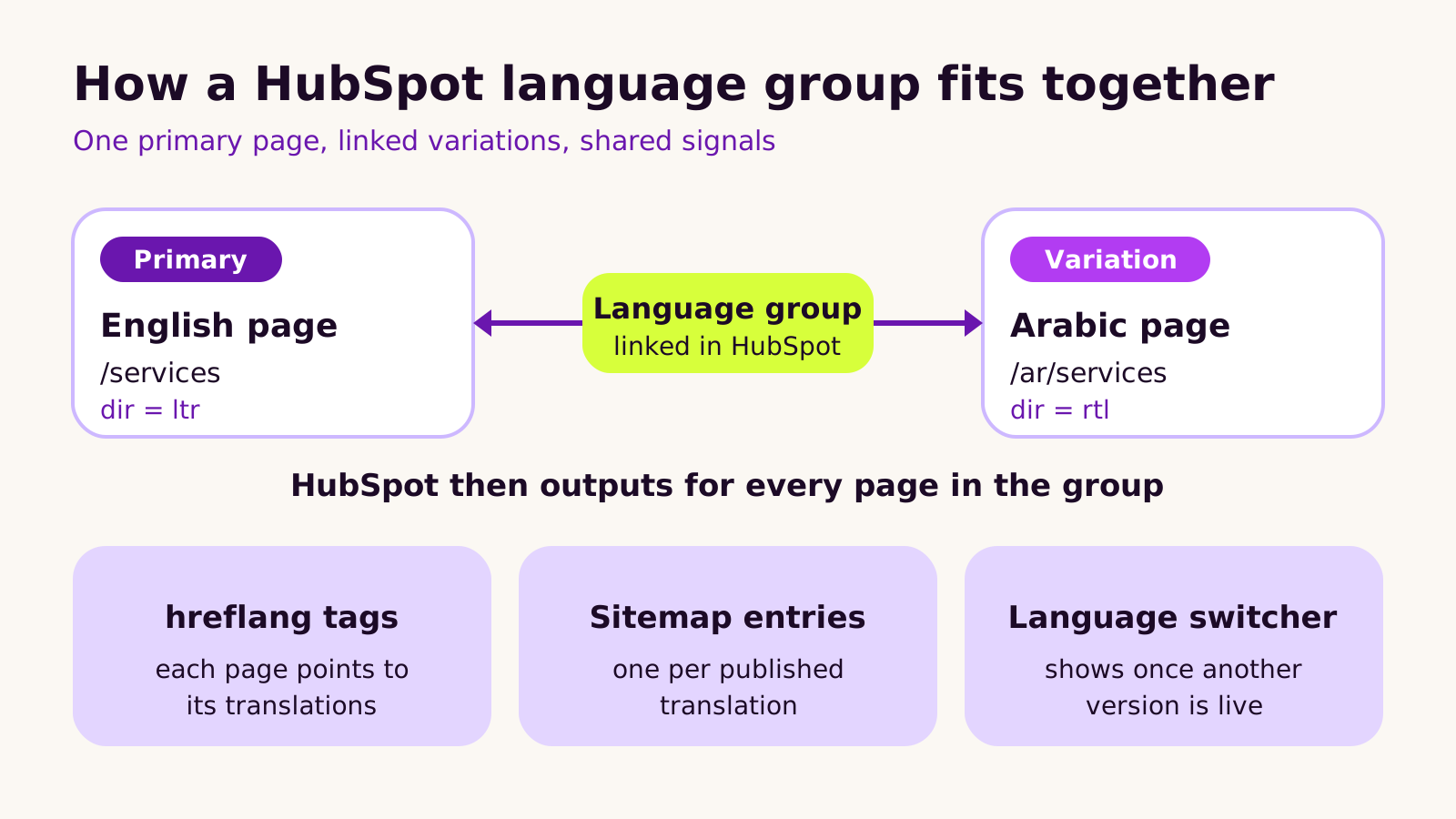
HubSpot organizes translations into language groups. One page is the primary version, and every translation is a multi-language variation attached to it. Each variation is a real page with its own URL, content, meta title and description. It isn't a live translation layer on top of the original.
Once pages share a group, HubSpot does three useful things for you:
- hreflang tags. Each published page in the group gets alternate links pointing to its siblings, so search engines can show the right language to the right searcher.
- Sitemap entries. Each published translation is added to the XML sitemap.
- The language switcher. HubSpot's default language switcher module lists the other versions, but it only appears once more than one page in the group is published.
Two things HubSpot does not do on its own. It doesn't translate content unless you ask it to, and coded templates don't automatically declare the page language or text direction. That second point matters a lot for right-to-left languages, and it's where many custom themes fall short.
Where the translations live: folders, subdomains or domains
You decide how language versions are addressed. The common choices are a language folder on the same domain (/ar/), a language subdomain, or a separate domain per language. Domain-level language settings live under Domains & URLs in your HubSpot settings.
| Structure | Good fit when | Watch out for |
|---|---|---|
Folder (/ar/) |
One brand, one team, one domain's authority shared across languages | Every page slug needs the language prefix applied consistently |
| Subdomain | Separate teams or approval flows per language | Each subdomain must be connected and set up in HubSpot |
| Separate domain | The language version is effectively a separate brand | More domains to renew, verify and monitor |
In most projects we'd choose the folder approach. It's the simplest to run, and it keeps everything under one domain in Search Console.
How to set up a HubSpot multi-language website, step by step
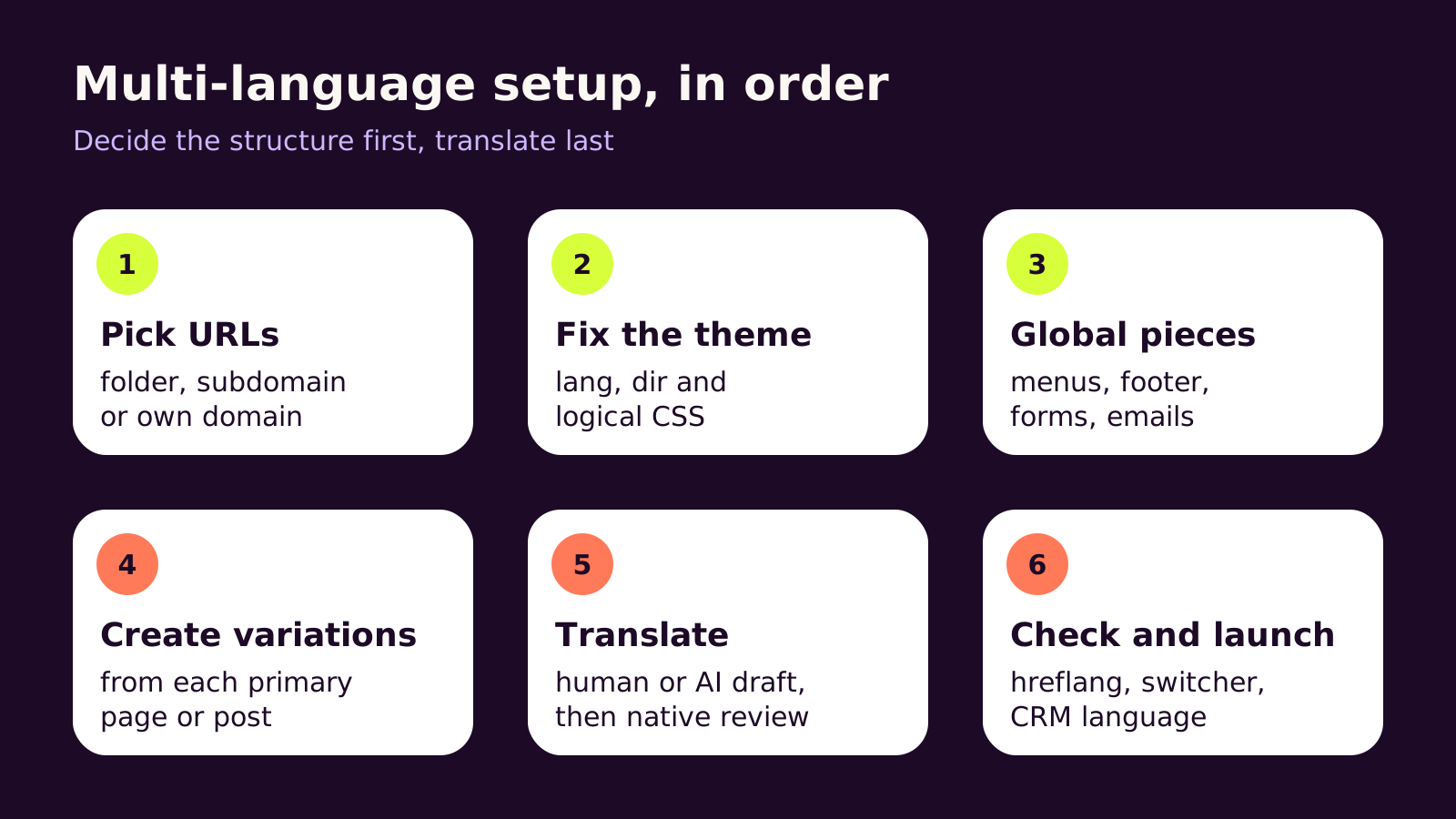
- 1 Choose the URL structure and set each domain's language under Domains & URLs before anything is published. Changing it later means redirects.
- 2 Prepare the theme. Make sure the base template outputs the page language and direction (code below), and that the CSS works in both directions.
- 3 Sort out global pieces. Create a navigation menu per language, translate footer text, and build forms in each language so labels, error messages and thank-you messages match the page.
- 4 Create variations. In Content > Website Pages (or Blog), open a primary page's actions and create a multi-language variation, choosing the language. If translated pages already exist as standalone pages, add them to the primary page's language group instead of rebuilding them. HubSpot moves its menu labels around from time to time, so look for "multi-language variation" if the path differs slightly.
- 5 Translate. On Content Hub Professional and Enterprise, HubSpot can create an AI translated variation for review once a Super Admin has switched on generative AI in AI settings. Its help docs note that automatic translation doesn't cover custom modules, so check those by hand. We treat AI output as a first draft and always have a native speaker review it.
- 6 Check and launch. Confirm the switcher shows on every translated page, view source for hreflang links, and test forms end to end.
The theme code for language and right-to-left direction
This is the part that separates a theme that merely contains Arabic text from one that actually reads right to left. HubSpot provides two HubL variables, html_lang and html_lang_dir, that fill in from each page's language setting. HubSpot's own CMS theme boilerplate uses them on the <html> tag in templates/layouts/base.html, and adds the default language switcher in the header partial:
{# templates/layouts/base.html #}
<html lang="{{ html_lang }}" {{ html_lang_dir }}>

{# templates/partials/header.html #}
{% module "language-switcher"
  path="@hubspot/language_switcher",
  label="Language switcher",
  display_mode="localized"
%}

/* css/main.css: logical properties flip automatically with dir */
.card {
  padding-inline-start: 2rem;
  border-inline-start: 4px solid var(--accent);
  text-align: start;
}
[dir="rtl"] .icon-arrow { transform: scaleX(-1); }
html:lang(ar) body { font-family: "Noto Sans Arabic", Arial, sans-serif; }
Put the first line in your theme's base layout, replacing any hard-coded lang="en". The switcher can go wherever your header has room. In the CSS, swap left and right properties for their logical equivalents (inline-start, inline-end), flip only icons whose meaning is directional, and change the font name to the Arabic typeface you license or self-host.
What we've learned building multilingual HubSpot sites
A few patterns come up again and again.
-
Translate the editor too, if your team needs it. Modules and themes can carry a
_localesfolder withmessages.jsonfiles that translate field labels in the editor. That helps when content editors work in different languages, though it doesn't translate anything visitors see. - Don't mirror everything. Logos, product photos, charts, phone numbers and code samples stay as they are. Arrows, progress steps and carousels usually flip.
- Keep one primary per group. Pages that sit outside the group, or in the wrong group, quietly lose their hreflang and switcher links.
- Plan the CRM side. If forms in each language feed one pipeline, add a language property to contacts so follow-up emails and workflows reach people in the language they used.
We wouldn't recommend separate HubSpot portals per language for most marketing sites. Reporting splits, forms drift apart, and the site stops behaving like one brand.
Troubleshooting
- Symptom: the language switcher doesn't show. Likely cause: only one page in the group is published, or the translation was created as a standalone page. Fix: publish the variation, or add the existing page to the primary page's language group.
-
Symptom: no hreflang tags in the page source. Likely cause: the pages aren't linked as one group, or the template is missing
standard_header_includes, which is where HubSpot injects head tags. Fix: link the pages, and confirm the base layout includes that variable inside<head>. -
Symptom: Arabic text reads correctly but the layout stays left to right. Likely cause: a hard-coded
langattribute and no direction on the<html>tag. Fix: usehtml_langandhtml_lang_diras shown above, then convert physical CSS properties to logical ones. - Symptom: translated pages still link to English pages. Likely cause: a single shared navigation menu. Fix: create a menu per language, have the header pick the menu that matches the page language with a small HubL condition, then update hard-coded links inside modules.
- Symptom: form errors appear in English on translated pages. Likely cause: the form was reused across languages. Fix: create a form per language and set its language in the form options.
Questions people ask
Does HubSpot translate my pages automatically?
Only if you use its AI translation feature, available on Content Hub Professional and Enterprise. It creates a translated variation for you to review before publishing. Without it, you add translated content yourself or through a translation service.
Can a HubSpot theme support Arabic and English at the same time?
Yes. One theme can serve both directions if the base template outputs the language and direction from HubL and the CSS uses logical properties. You don't need a separate theme for right-to-left pages.
Should the blog be translated too?
Only the posts that matter for buyers in that language. HubSpot blogs support multi-language variations, but a smaller, well-translated set usually serves readers better than a full but rushed one.
Why it matters for your business
A multilingual site that is connected properly does more than show translated words. Visitors land on the version in their language, forms route enquiries to the right people, and search engines understand which page to show. One that is merely copied tends to confuse all three.
If you're still deciding whether HubSpot is the right home for the site, our guide to HubSpot CMS website development covers that, and our post on turning Figma designs into a HubSpot theme explains how a theme gets built so editors can run it. For a comparison on other platforms, see how we approach a Next.js multi-language website with RTL and Webflow Localization for multi-market sites.
Quick checklist: URL structure chosen, theme outputs lang and dir, CSS uses logical properties, menus and forms exist per language, every translation sits in a language group, and a native speaker has reviewed the copy.
If you'd like a second pair of eyes on your multilingual setup, our HubSpot CMS development team is happy to talk it through.
(over to you)
Planning a build like this?
Tell us what you're building and we'll come back with ideas and next steps.