Chrome XSLT removal: fix styled sitemaps, feeds and XML pages
The Chrome XSLT removal reached stable in Chrome 158 on 17 November 2026. What breaks and what only looks broken, a script to find XSLT on your site, a WordPress sitemap fix, and how to choose between removing, moving or rebuilding.
Chrome 158, released to stable on 17 November 2026, no longer runs XSLT for most users. The main takeaway: styled sitemaps and feeds now look like raw XML in Chrome, but search engines and feed readers are not affected. Tools that build pages with XSLT in the browser are the real risk.
First, find every place XSLT is used. Search your code for XSL files, the xml-stylesheet instruction and the XSLT Processor API, and check what your site actually serves, because plugins often add stylesheets.
Second, sort what you find. Sitemaps and feeds are cosmetic. Order lookups, reports and catalogue screens are functional.
Third, pick a fix. Remove the stylesheet from sitemaps and feeds. For tools people use, move the transform to the server or rebuild the page. An origin trial or enterprise policy can buy time, but only until Chrome 176 in August 2027.
Next step: run a short audit this week, purge caches after changes, and put a date on replacing anything that still depends on browser XSLT.
This post is for anyone whose website, store or internal tool serves XML that people open in a browser: styled sitemaps, styled RSS feeds, product feed previews, or an older portal that builds its pages with XSL. The Chrome XSLT removal reached the stable channel with Chrome 158 on 17 November 2026, and since then Chrome no longer runs XSLT for most users. You'll learn what actually broke, what only looks broken, how to find XSLT on your own site, and which fix to choose.
What changed in Chrome 158, and who notices
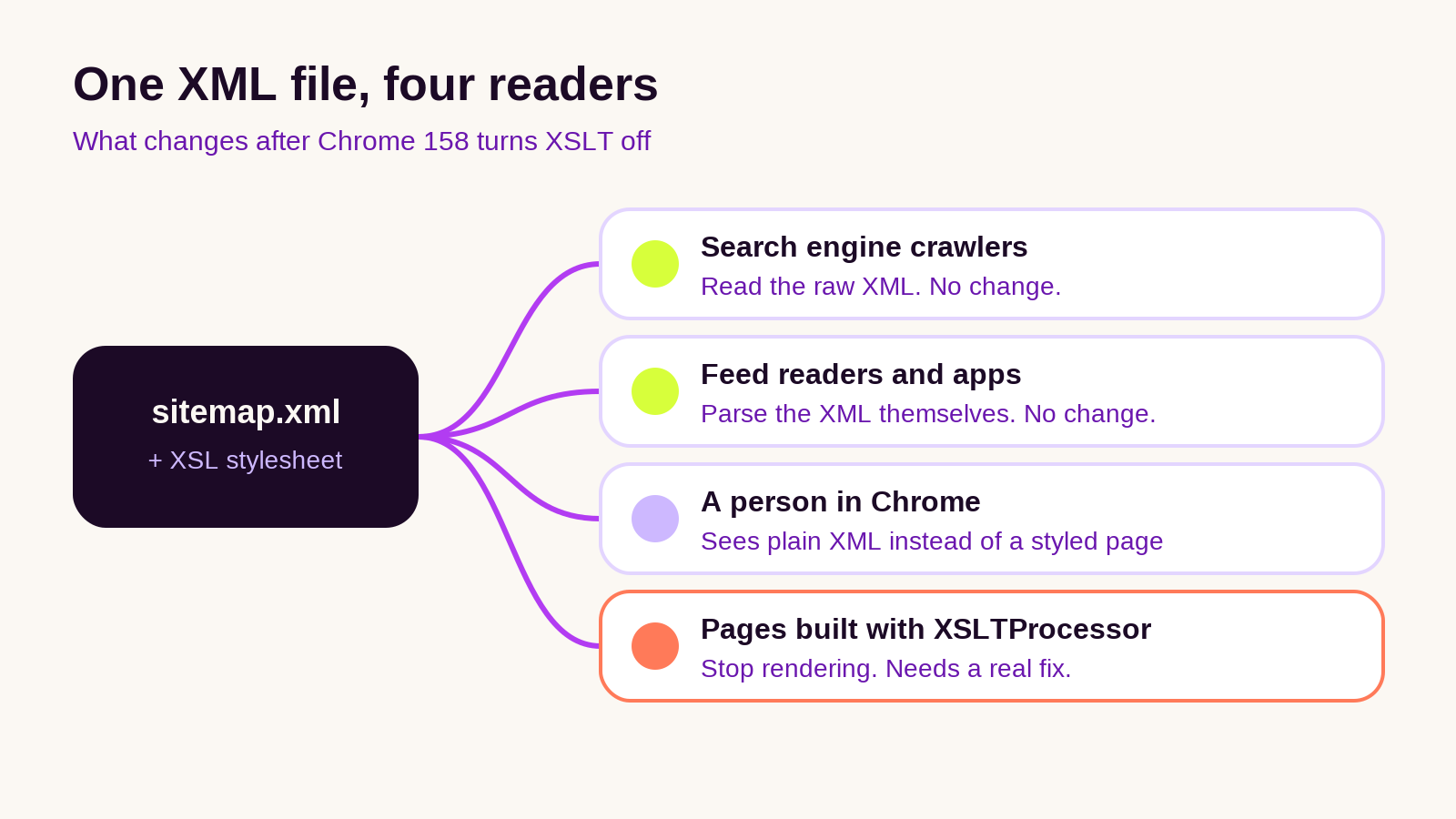
Most clients notice this one in a slightly alarming way: someone opens the sitemap link in Chrome and, instead of the tidy table they saw last month, gets a wall of raw XML tags. The first question is usually "has our SEO broken?" For a sitemap, the answer is almost always no.
The people who should worry are the ones running something people actually work in. An order lookup page, a reporting screen in an old intranet, or a product catalogue view that turns XML into HTML in the browser will simply stop rendering properly in current Chrome. Microsoft Edge shares the Chromium engine, so plan for it to follow the same path.
Chrome's own guide, Removing XSLT for a more secure browser, sets out the timeline. XSLT stopped working on stable from Chrome 158. Sites in the origin trial and machines with the enterprise policy keep it for now, and that escape hatch closes with Chrome 176, scheduled for 17 August 2027.
How browser XSLT worked, and why removing it is mostly cosmetic
XSLT is a language for transforming XML into something else, usually HTML. A browser could run it in two ways:
-
The stylesheet instruction. An XML file starts with a line like
<?xml-stylesheet type="text/xsl" href="/sitemap.xsl"?>. The browser fetches the XSL file, transforms the XML and shows the result as a web page. This is how most styled sitemaps and feeds work, including the default WordPress sitemap at/wp-sitemap.xmland the sitemaps many SEO plugins generate. -
The JavaScript API. A script creates an
XSLTProcessor, loads a stylesheet and transforms XML on the fly. Older web apps and dashboards used this to build whole screens.
Chrome removed both. The reason given is security: the XSLT engine browsers relied on is old, rarely used and hard to maintain safely, so taking it out shrinks the attack surface for everyone.
Here's the part that calms people down. Search engine crawlers and feed readers never ran your stylesheet. They read the XML directly, the same way they did before. The stylesheet was only ever there so a human opening the file would see something friendlier.
How to find and fix XSLT after the Chrome XSLT removal
Step 1: find every place XSLT is used
Search your codebase, theme and server config for three things: files ending in .xsl or .xslt, the text xml-stylesheet, and the word XSLTProcessor. Then check what your site actually serves, because plugins and apps often add stylesheets you never wrote. This small Node.js script (Node 18 or later, no packages needed) fetches a list of URLs and flags any that still use XSLT:
// check-xslt.mjs
// Run: node check-xslt.mjs https://example.com/wp-sitemap.xml https://example.com/feed/
const urls = process.argv.slice(2);

for (const url of urls) {
  try {
    const res = await fetch(url, { redirect: 'follow' });
    const body = await res.text();
    const usesStylesheet = /<\?xml-stylesheet[^>]*(text\/xsl|xslt\+xml|\.xslt?["'])/i.test(body);
    const usesApi = /\bXSLTProcessor\b/.test(body);
    const notes = [];
    if (usesStylesheet) notes.push('XSL stylesheet instruction');
    if (usesApi) notes.push('XSLTProcessor in page');
    console.log(`${notes.length ? 'CHECK' : 'ok   '} ${res.status} ${url} ${notes.join(', ')}`);
  } catch (err) {
    console.log(`ERROR ${url} ${err.message}`);
  }
}
Swap in your own sitemap, feed and tool URLs. It only reads the HTML or XML you give it, so for single-page apps also search the JavaScript bundles or the source repository for XSLTProcessor.
Step 2: sort what you found
Put each result in one of two piles. Cosmetic means the XML still does its job without styling: sitemaps, RSS and Atom feeds, and most data feeds. Functional means a person relies on the transformed page to do something: look up an order, read a report, browse a catalogue.
Step 3: choose the fix
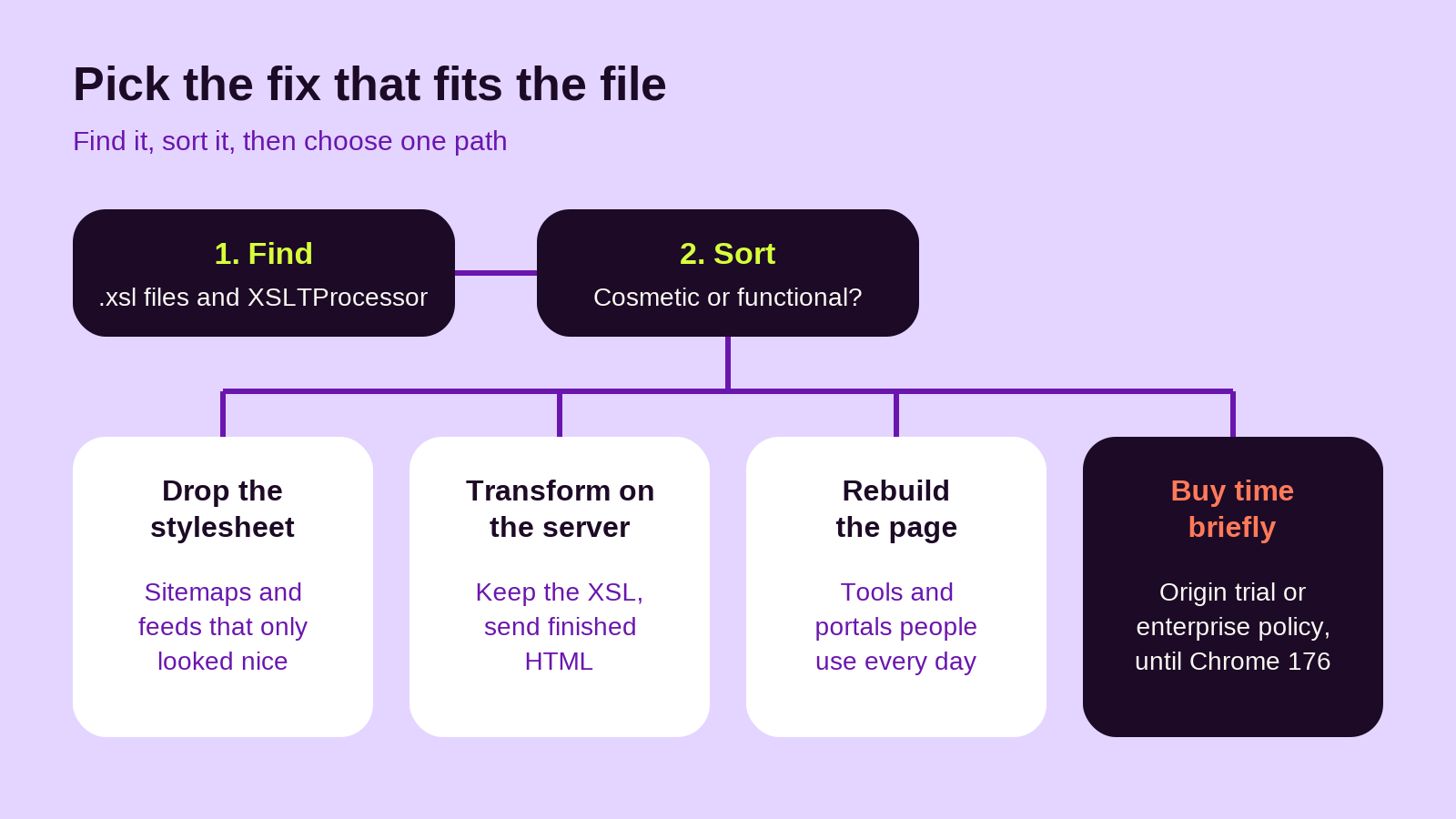
| Option | Best for | Trade-off |
|---|---|---|
| Remove the stylesheet | Sitemaps and feeds | Humans see plain XML, which is fine for these files |
| Transform on the server | Pages where the XSL logic is worth keeping | Needs an XSLT library on the server, such as PHP's XSL extension |
| Rebuild as a normal page | Tools and portals people use daily | Most work, but removes the dependency for good |
| Origin trial or enterprise policy | Buying time for a planned rebuild | Ends with Chrome 176, so it is a bridge, not a fix |
On WordPress, the core sitemap's stylesheet can be switched off with two filters. Returning a false value tells WordPress to output the sitemap with no stylesheet instruction at all, so Chrome shows clean XML rather than a failed transform. Add this to a small site plugin or your child theme's functions.php:
<?php
// Serve WordPress core sitemaps without an XSL stylesheet.
add_filter( 'wp_sitemaps_stylesheet_url', '__return_false' );
add_filter( 'wp_sitemaps_stylesheet_index_url', '__return_false' );
If an SEO plugin generates your sitemap instead, these filters won't touch it. Look in the plugin's settings and changelog for its own way to turn off sitemap styling, and update the plugin before writing any custom code.
What we've learned from cleaning this up
In most projects we'd remove stylesheets from sitemaps and feeds rather than rebuild them as pretty HTML pages. Nobody outside the team looks at them, and every extra layer is something else to maintain. If marketing wants a readable list of pages, a normal HTML sitemap page in the CMS does that job better.
For functional tools, we usually recommend a server-side transform as the quick move and a proper rebuild as the lasting one. Moving an existing XSL file to the server keeps behaviour identical, which matters when nobody remembers why a report is laid out the way it is. The origin trial is worth it only when there's a dated plan to replace the page before Chrome 176.
The common mistake is treating the raw XML view as an SEO emergency and "fixing" it by changing sitemap URLs or formats. That creates real problems where there were none.
Troubleshooting
- Symptom: the sitemap shows raw tags in Chrome. Likely cause: it still references an XSL stylesheet. Fix: nothing is broken for crawlers; remove the stylesheet instruction when convenient.
-
Symptom: an internal page is blank or shows an error in Chrome but works elsewhere. Likely cause: it calls
XSLTProcessor, which no longer exists. Fix: move the transform to the server or rebuild the page; use the enterprise policy for managed staff browsers while you do. -
Symptom: you joined the origin trial but XML files still don't transform. Likely cause: the token was added as an HTML meta tag, which an XML file can't carry. Fix: send the token in an
Origin-TrialHTTP response header for those files. - Symptom: the stylesheet is gone in code but Chrome still tries to load it. Likely cause: a CDN or page cache is serving the old XML. Fix: purge the cache for the sitemap and feed URLs.
Questions people ask
Will the Chrome XSLT removal hurt our search rankings?
Not on its own. Search engines read sitemap and feed XML directly and never relied on browser XSLT. Only change what you serve if a page people use has stopped working.
Do other browsers still support XSLT?
For now, yes, but don't build on it. Treat any page that depends on browser XSLT as something to replace, whatever browser your visitors use today.
Is this a WordPress problem?
No, it affects any platform that serves styled XML or uses XSLT in the browser, including custom apps and older enterprise portals. WordPress sites just tend to notice first because of the styled core sitemap.
Why it matters for your business
The Chrome XSLT removal is a good example of a browser change that's harmless on the public site and disruptive behind it. Your sitemap will be fine. The order lookup screen your support team opens every morning might not be. A short audit now tells you which one you're dealing with.
A quick checklist:
- Run the script above against your sitemaps, feeds and any internal XML pages.
- Remove stylesheets from sitemaps and feeds, then purge caches.
-
List every tool that uses
XSLTProcessorand pick a server-side or rebuild fix for each. - If you need the origin trial or policy, put a replacement date well before Chrome 176.
If you've also changed hosting recently, our guide to keeping Googlebot crawling through a CDN migration covers the caching side, and our post on the Chrome Web Install API looks at another change in the same Chrome release. For framework sites, the Next.js SEO guide to metadata and sitemaps shows how to generate clean sitemaps with no styling at all.
If you'd like a second pair of eyes on an older tool or a WordPress site, our WordPress development and website care and web app team can audit and fix it, so tell us what you're running.
(over to you)
Planning a build like this?
Tell us what you're building and we'll come back with ideas and next steps.