Shopify Rollouts: how to schedule and A/B test a theme launch
Shopify Rollouts now bundles theme, checkout, discount and market catalog changes into one scheduled launch, event or experiment (Fall '26 Edition, October 2026). How each type works, how to set one up and fixes for common problems.
Shopify Rollouts lets you schedule a new theme, checkout setup, discounts and market catalogs as one change, and either keep it, roll it back at a set time, or test it against your current store.
Since Shopify's Fall '26 Edition in October 2026, discounts and market catalogs can sit in the same rollout as a theme or checkout change. That means a sale, its prices and its new design can go live and end together.
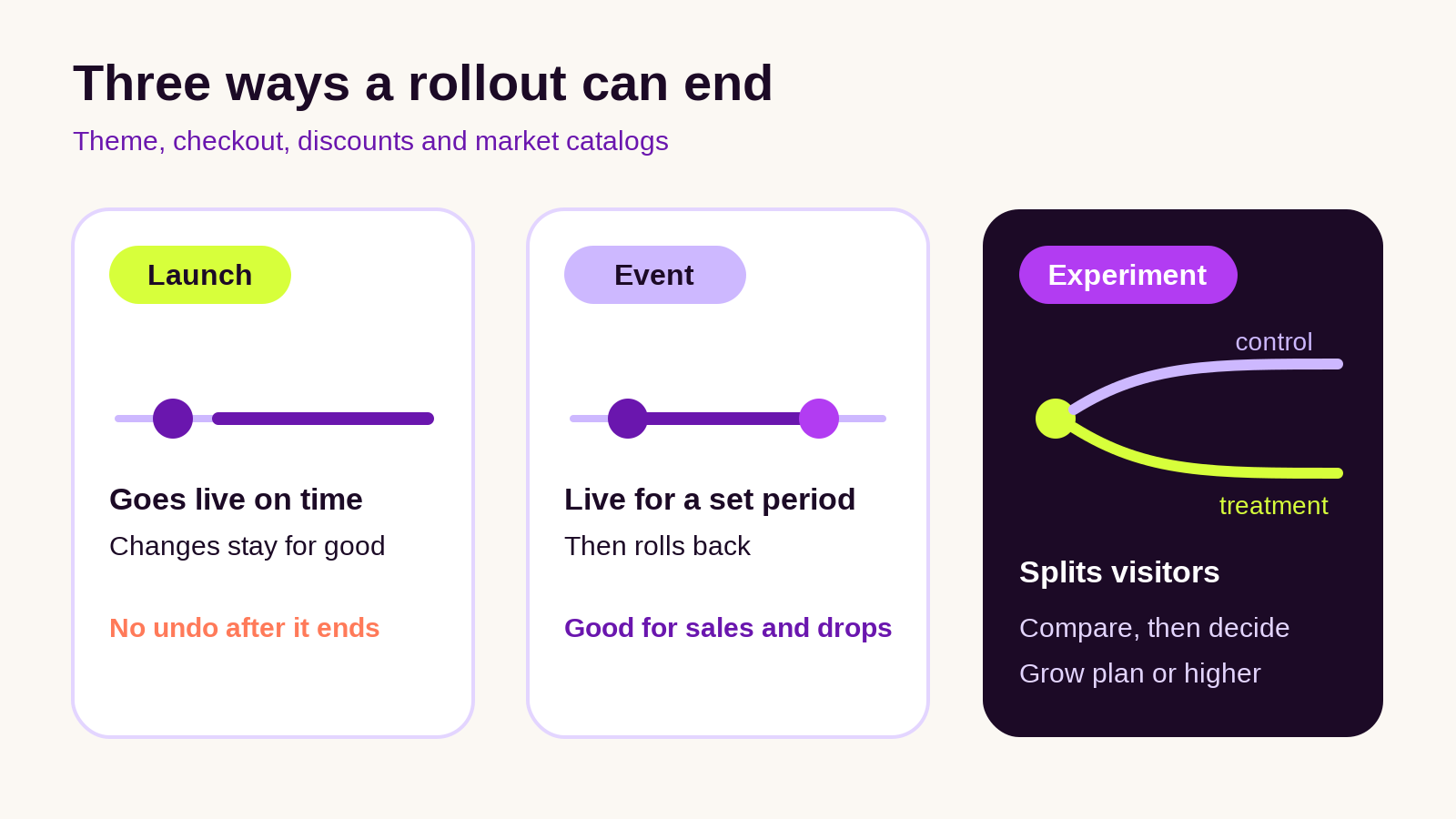
There are three types. A Launch keeps its changes for good, and can't be undone once it ends. An Event runs for a set period and then reverts. An Experiment splits visitors between your current store and the new version, and needs the Grow plan or higher.
To set one up, build the change on a copy, attach the discounts and catalogs, preview every market, then schedule it from Markets, Rollouts in your admin. Freeze edits to the live theme while it runs, and agree a review date with your developer.
If you're planning a redesign or a big sale, map it as a rollout first, and ask your Shopify developer to own the preview and review steps.
If you run a Shopify store and dread launch nights, this is for you. Shopify Rollouts lets you schedule a new theme, checkout setup, discounts and market catalogs as one change, then keep it, roll it back at a set time, or test it against your current store. Below we explain how each rollout type behaves, how to set one up with your developer, and how to fix the problems we see most often.
What changed recently: with the Fall '26 Edition, released at the end of October 2026, Shopify finished bringing discounts (added in early October) and market catalogs with their prices (added later that month) into Rollouts, alongside themes and checkout and accounts configurations. Before that, a redesign and the sale it was built for were scheduled in different places, often by different people.
The problem: launches that depend on someone being awake
Most stores we work with have the same story. A new theme is ready, a promotion starts at midnight, and somebody has to publish the theme, switch on the discount codes and change prices by market at the right moment. When the sale ends, someone has to undo all of it. Miss one step and customers see sale banners with full prices, or the old theme with new discounts.
There is a second problem underneath. Redesigns are usually judged on opinion. The team likes the new homepage, so it goes live, and nobody can say afterwards whether it helped or hurt. A proper comparison used to mean a third-party testing app and some extra code.
How Shopify Rollouts actually works
A rollout is a scheduled bundle of changes to your main theme, your checkout and accounts pages, your discounts, your market catalogs, or any mix of them. You'll find it in the admin under Markets > Rollouts. When you add a theme or checkout change, Shopify works from a copy of the published version, so your live store can still be edited while the rollout waits.
Every rollout has a type, and the type decides what happens when it ends.
| Type | What it does | Use it for |
|---|---|---|
| Launch | Applies the changes at the scheduled time and keeps them. Once it ends, it can't be reverted from the rollout. | A redesign or new checkout you've already tested |
| Event | Applies the changes for a set period, then rolls them back. | A sale, a product drop, a seasonal look |
| Experiment | Shows a control (your current store) to some visitors and a treatment (the changes) to others, then reports the results. | Deciding between two themes or two checkout setups |
A few rules shape what you can put in a rollout. Only catalogs created for markets can be added; B2B catalogs assigned to a company or company location, and archived catalogs, can't. A discount can belong to only one unended rollout at a time. Experiments need the Grow plan or higher, and you can target a rollout to a specific market.
For experiments, Shopify reports conversion rate, add-to-cart rate, reached-checkout rate and bounce rate for theme tests, and checkout conversion for checkout and accounts tests. Only visitors who consent to tracking are counted, which matters when you read the numbers.
How to schedule a Shopify Rollouts launch, step by step
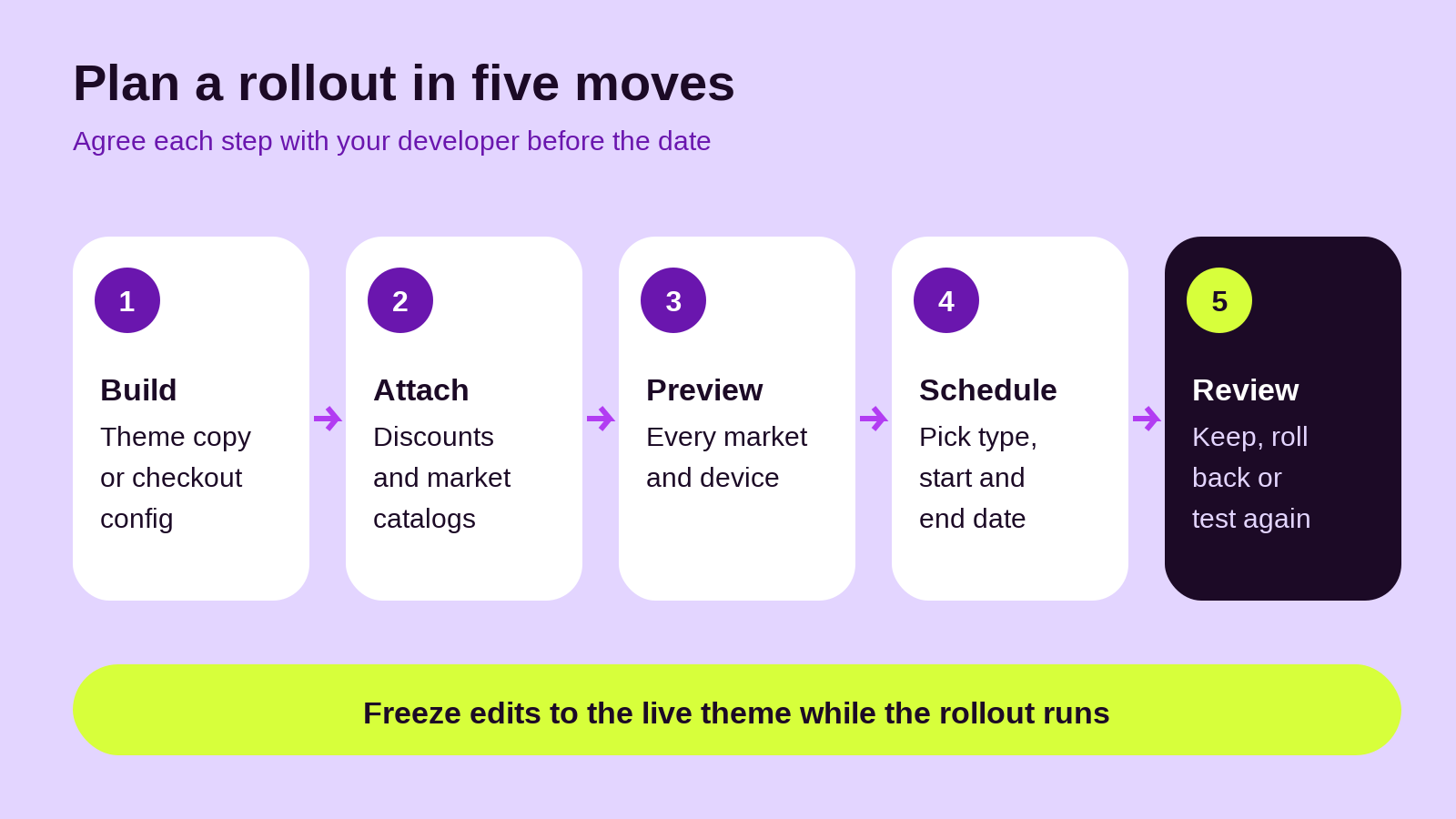
- 1 Build the change. Have your developer finish the new theme (or the checkout and accounts configuration) and test it in preview. For a sale, create the discounts and the market catalog with sale prices, but leave them inactive or in draft.
- 2 Create the rollout. Go to Markets > Rollouts, create a rollout and choose Launch, Event or Experiment. Pick the markets it should apply to.
- 3 Attach everything that belongs together. Add the theme or checkout change, then the discounts to activate and the catalogs to switch. One rollout per campaign keeps the start and end times in one place.
- 4 Set the audience and dates. For an Experiment, set the traffic split in the Audience section and an end date. For an Event, set the end date carefully: that is when everything reverts.
- 5 Preview every market and device. Check prices, currency, banners and checkout in each market the rollout touches, on mobile as well as desktop.
- 6 Freeze the live theme. Agree that nobody edits the control or treatment while an Experiment runs, because edits mid-test can change its results.
- 7 Review on a set date. Read the results, then decide: launch the winner, roll back, or test again.
Tag the theme variant in your own analytics
Shopify's rollout analytics cover the basics. If you also send data to Google Analytics or another tool through a tag manager, it helps to record which theme a visitor saw. On Liquid storefronts the global Shopify.theme object holds the current theme's id and name, so a small snippet in layout/theme.liquid, placed above your tag manager code in both themes, does the job:
<script>
  window.dataLayer = window.dataLayer || [];
  if (window.Shopify && window.Shopify.theme) {
    window.dataLayer.push({
      event: 'theme_variant',
      theme_id: window.Shopify.theme.id,
      theme_name: window.Shopify.theme.name
    });
  }
</script>
Rename the event to match your tag manager setup, and confirm in the browser console that the treatment shows the new theme's name. This only covers theme tests; checkout experiments are measured in Shopify's own report. Your tags should still respect the store's consent settings.
What we've learned running rollouts
The feature is simple; the planning around it is where things slip. A few habits we'd recommend:
- Don't stack rollouts on the same pages. Overlapping active rollouts can reduce the traffic an Experiment actually gets, so the split you set isn't the split you get.
- Test one big idea at a time. If the treatment changes the homepage, the product template and the checkout, you'll know which version did better but not why.
- Treat a Launch as final. If there's any chance you'll want to go back, run it as an Event or keep the old theme in your theme library.
- Check your product feeds. If an Event or Experiment changes prices, make sure the prices in Google and Meta feeds still match what shoppers see.
When wouldn't we use it? For small copy edits, a rollout is more ceremony than the change deserves. And low-traffic stores may need a long test before results mean much, so a careful Launch with a rollback plan is often the better call.
Troubleshooting
- Symptom: a discount won't attach to the rollout. Likely cause: it's already part of another rollout that hasn't ended. Fix: remove it from the other rollout, or duplicate the discount for this campaign.
- Symptom: your wholesale catalog isn't in the list. Likely cause: B2B catalogs assigned to a company or company location can't be added, and neither can archived ones. Fix: schedule B2B price changes separately, or create a market catalog if that suits the setup.
- Symptom: the Experiment shows fewer visitors than your analytics. Likely cause: only consenting visitors are counted, and overlapping rollouts take a share of traffic. Fix: end or reschedule overlapping rollouts and compare like with like. Our guide to reading Shopify sessions and bot traffic in reports explains other reasons numbers differ.
- Symptom: sale prices are wrong in one market. Likely cause: the catalog's prices, or fixed prices for that market's currency, weren't set as expected. Fix: check the catalog and the market's pricing; our Shopify multi-currency setup guide covers rates, fixed prices and rounding.
Questions people ask
Can Shopify Rollouts replace an A/B testing app?
For whole-theme and whole-checkout comparisons, it often can, and it runs inside Shopify. Dedicated apps still make sense for small element-level tests or more detailed reporting.
Does a rollout publish the theme for everyone at once?
A Launch or Event applies to the markets you choose at the scheduled time. An Experiment shows the change only to the treatment group until you decide what to do.
Who should set up the rollout, us or our developer?
Your developer should build and preview the theme or checkout change. The rollout itself can be owned by whoever runs the campaign, as long as both agree the dates and the review.
Why it matters for your store
Rollouts turn a launch from a late-night task into a planned change with a scheduled end and, if you want one, a fair comparison. That means fewer pricing mistakes, redesign decisions based on results rather than taste, and clearer handoffs between your team and your agency. Pair it with Shopify Flow automations for the tasks around a sale, such as tagging orders or alerting staff.
Quick checklist: one rollout per campaign, the right type for how it ends, every market previewed, the live theme frozen during tests, and a review date in the calendar.
If you're planning a redesign or a big promotion and want it built and tested properly, our Shopify development service can help, or tell us what you're planning.
(over to you)
Planning a build like this?
Tell us what you're building and we'll come back with ideas and next steps.