Shopify multi-currency: set up prices, rates and rounding right
How Shopify multi-currency works in Markets: automatic vs manual exchange rates, fixed prices, rounding, a Liquid currency selector, and fixes for the problems stores hit after launch.
Shopify can show and charge prices in your customers' own currency, but the setting you choose for each market decides whether your prices look clean and your margins hold.
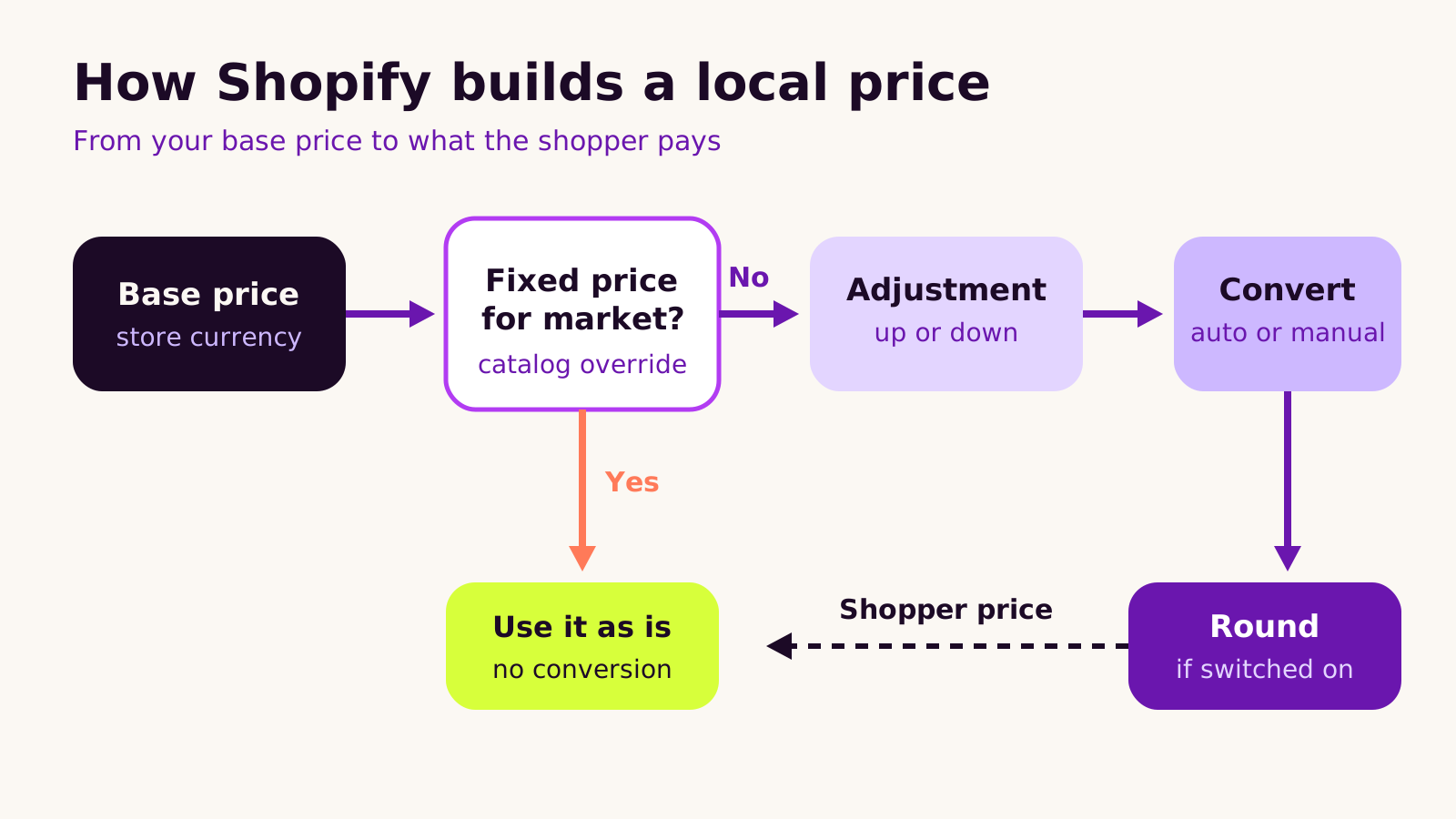
Here's how it works. Shopify starts from your base price. If you've set a fixed price for a market, it uses that. Otherwise it applies any price adjustment, converts with an automatic or a manual exchange rate, and then rounds the result if rounding is switched on.
Automatic rates follow the market and suit large catalogs. Manual rates keep prices steady, but the conversion fee comes out of your payout and refunds still use the current rate. Fixed prices give you control over key products, so check their margins whenever rates move.
On the theme side, use the localization form for your country selector, and audit apps and custom code that print prices with a hard-coded symbol.
Next, list your markets, choose a pricing approach for each one, test checkout in every currency, and review rates and fixed prices on a regular schedule.
If you sell on Shopify to customers who pay in different currencies, this guide is for you. Getting Shopify multi-currency working is easy; getting it right is harder. We'll explain how Shopify turns your base price into a local one, which pricing approach suits which market, how to add a proper currency selector to your theme, and how to fix the problems we see most often after launch.
The real problem: prices that look wrong or quietly lose margin
Most store owners switch on a few currencies, see converted prices on the storefront and assume the job is done. Then the questions start. Why does a product cost an awkward amount in one currency? Why did a refund come back as a different figure from the order? Why does the upsell app still show the store's own currency? And why did margins on the bestseller shrink when nobody changed a price?
Every one of those comes from the same place: not knowing which rule Shopify applied to that price. Once you can trace a price from your base currency to the shopper's screen, the fixes are usually small.
How Shopify multi-currency pricing actually works
Shopify stores a single base price per variant, in your store currency. Each market (a country, a group of countries, or in newer setups a sales channel) has a currency setting. When a shopper's market uses a different currency, Shopify builds their price in a fixed order:
- 1 Fixed price check. If the market's catalog has a fixed price for that product, Shopify uses it as it is. Fixed prices take precedence over adjustments and over manual exchange rates.
- 2 Price adjustment. Otherwise, any percentage adjustment you set for the market or catalog is applied. By default it also applies to compare-at prices.
- 3 Conversion. The price is converted with either an automatic (dynamic) rate that follows the currency markets through the day, or a manual rate you set yourself.
- 4 Rounding. If rounding is on, Shopify rounds the converted price to a common price point for that currency. You can't customise the rounding rules, and they don't apply to gift cards or to B2B customers.
Fees matter too. With an automatic rate, Shopify's currency conversion fee is built into the converted price the customer sees. With a manual rate, the customer pays exactly the price your rate produces and the fee is taken from your payout instead. That's why stores that switch to manual rates sometimes see slightly lower payouts and can't work out why.
How to set up Shopify multi-currency, step by step
1. Plan markets before you touch settings
List where you sell, which currency each group of customers expects, and whether any of them need their own prices, products or language. Group countries that share a currency and pricing into one market; give a country its own market only when it genuinely needs different treatment. Fewer markets are easier to keep accurate.
2. Choose a pricing approach per market
In the Shopify admin, open Markets, select a market and set its currency. Then pick dynamic or manual exchange rates and decide whether to switch rounding on. If you use catalogs, add a price adjustment or fixed prices for specific products there.
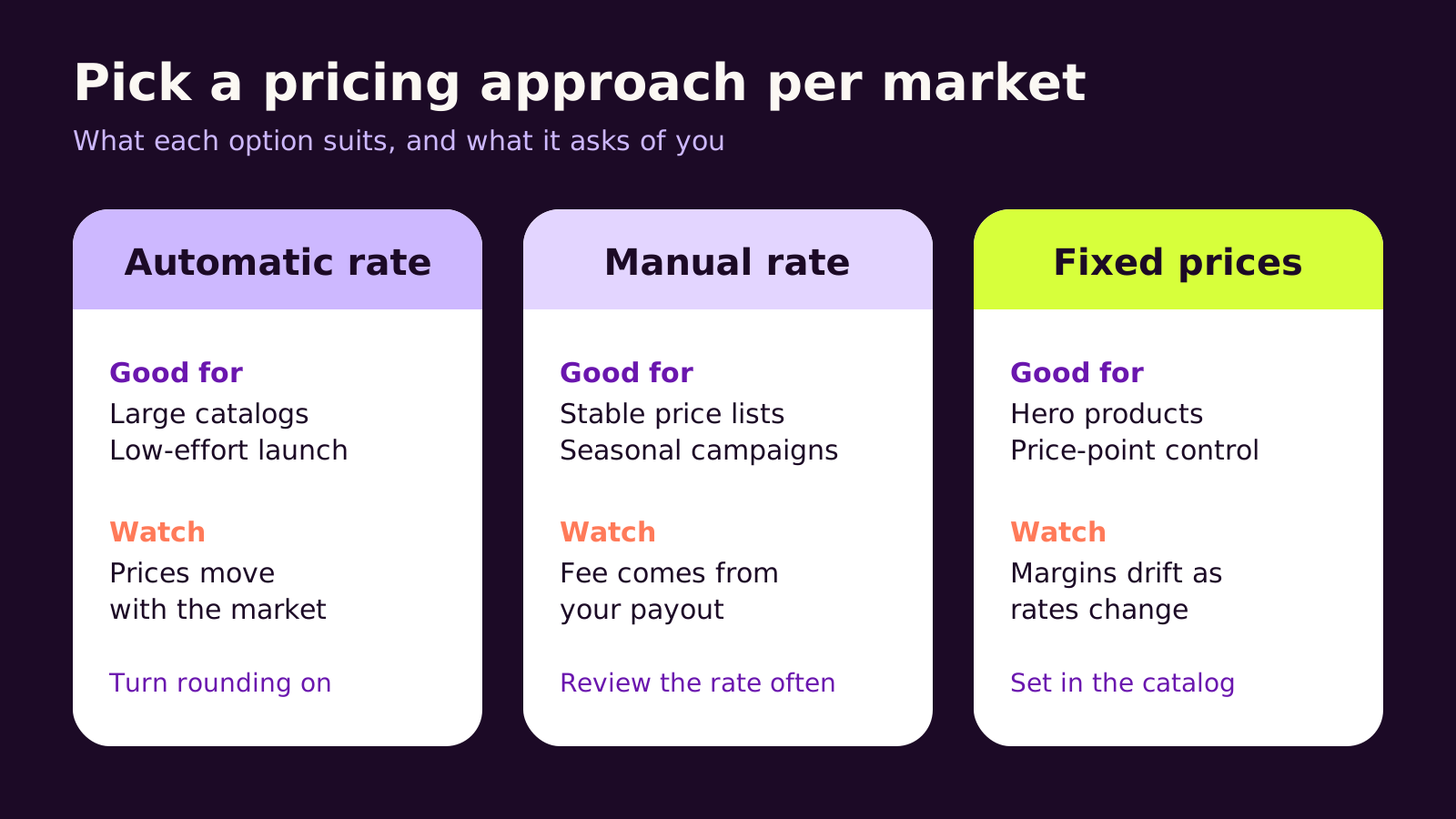
| Approach | When we'd use it | What you have to maintain |
|---|---|---|
| Automatic rate with rounding | Large catalogs, new markets, testing demand | Little; prices move with the rate |
| Manual rate | Printed price lists, campaigns, markets where stable prices matter | Reviewing the rate and allowing for the fee in your payout |
| Fixed prices in a catalog | Hero products, price-point marketing, bundles | Checking margins whenever exchange rates shift |
In most projects we'd start with automatic rates and rounding on, then add fixed prices only for the products you advertise at a set price. If you want the conversion fee absorbed under a manual rate, you can build an allowance for it into the rate you enter.
3. Add a currency selector your theme handles properly
Shopify can pick a shopper's market from their location, but people travel, use VPNs and buy gifts for friends elsewhere, so they need a way to switch. Modern themes do this with the Liquid localization form; the older currency form is deprecated. If your theme lacks a selector, a minimal one looks like this. Put it in a snippet (for example snippets/country-selector.liquid) and render it in your header or footer:
{%- if localization.available_countries.size > 1 -%}
  {%- form 'localization', id: 'CountryForm' -%}
    <label for="CountrySelect">Country / currency</label>
    <select id="CountrySelect" name="country_code"
      onchange="this.form.submit()">
      {%- for country in localization.available_countries -%}
        <option value="{{ country.iso_code }}"
          {%- if country.iso_code == localization.country.iso_code %} selected{% endif %}>
          {{ country.name }} ({{ country.currency.iso_code }} {{ country.currency.symbol }})
        </option>
      {%- endfor -%}
    </select>
  {%- endform -%}
{%- endif -%}
The input must be named country_code; Shopify switches the market and currency from it. The onchange submit keeps it simple; style the label and select to match your theme. For prices elsewhere in the theme, use Shopify's money filters (such as money or money_with_currency) so the formatting follows the active currency rather than a typed symbol.
4. Test like a customer in every currency
Switch to each market with the selector, add products to the cart, apply a discount, and go through checkout as far as payment. Check product pages, collection grids, the cart drawer, emails and any app widgets. If you also sell in Arabic or another right-to-left language, test the currency symbol position in both directions too; our guide to setting up a bilingual Arabic Shopify store covers those layout details.
What we've learned from multi-currency stores
- Hard-coded symbols are the most common bug. Old custom sections, free-shipping bars and announcement text often contain a typed currency symbol or amount. Search the theme code and theme settings for them.
- Fixed prices are a commitment. They're great for marketing, but they don't follow exchange rates. Put a recurring reminder in the calendar to review them.
- Apps are the weak link. Reviews, upsell, bundle and subscription apps don't all read market prices the same way. Ask each vendor how their app handles Markets before you launch, and remove the ones you don't need; our Shopify app audit guide walks through that.
- Refunds follow today's rate. With manual rates, refunds are processed at the current market rate rather than the rate you set, so a refund can differ from the order amount in your store currency. Tell your support team before it surprises a customer.
Coming from WooCommerce? The concepts are similar but the controls live in different places; compare them with our WooCommerce multi-currency setup guide.
Troubleshooting common problems
- Symptom: the currency selector doesn't appear. Likely cause: only one country is available to the storefront, or the theme's selector setting is off. Fix: check the market is active and includes more than one country across your markets, then enable the selector in the theme editor or add the snippet above.
- Symptom: an app widget or banner shows the store currency. Likely cause: the app or custom code reads the base price or prints a fixed symbol. Fix: update the code to use money filters, or ask the app vendor about Markets support.
- Symptom: prices aren't rounded to clean amounts. Likely cause: rounding is off, the store isn't on Shopify Payments, or the item is a gift card or a B2B price. Fix: switch rounding on for the market, or set fixed prices where clean price points matter.
- Symptom: payouts look lower than expected after switching to a manual rate. Likely cause: the conversion fee is now deducted from your payout. Fix: build an allowance for the fee into the rate, or return to automatic rates.
- Symptom: a fixed-price product sells at a thin margin in one market. Likely cause: the exchange rate moved and the fixed price didn't. Fix: review fixed prices against current rates and update the catalog.
Questions people ask
Do I need a separate store for each currency?
Usually not. Markets lets one store sell in several currencies with their own prices. Separate stores make sense when you need different teams, catalogs or legal entities, which adds work, so we only suggest it when there's a clear reason.
Should I use automatic or manual exchange rates?
Automatic rates suit most stores because they need little upkeep. Manual rates suit stores that want prices to stay put for a season, as long as someone reviews the rate regularly.
Will my discount codes work in other currencies?
Percentage discounts apply as normal. Fixed-amount discounts are converted for the shopper's currency, so test any code you advertise in each market before a campaign.
Why getting currencies right matters for your store
Shoppers trust prices they recognise. A clean local price, a checkout that matches the product page and a refund that makes sense all reduce the hesitation that ends in an abandoned cart or a support ticket. On your side, knowing exactly which rule produced each price protects your margins as rates change. If you're planning a move to Shopify first, start with our WooCommerce to Shopify migration plan.
Quick checklist: plan markets, confirm Shopify Payments, choose a rate type per market, turn rounding on, add fixed prices only where needed, use the localization form, remove hard-coded symbols, test checkout in every currency, and review rates on a schedule.
If you'd like a second pair of eyes on your markets and theme, our Shopify development team is happy to help, or you can start a conversation here.
(over to you)
Planning a build like this?
Tell us what you're building and we'll come back with ideas and next steps.