WooCommerce to Shopify migration: a step-by-step plan
A practical WooCommerce to Shopify migration plan: what moves and what doesn't, mapping variants, importing in the right order, building redirects with a script, testing and launch.
A WooCommerce to Shopify migration is mostly a data and redirect job, not a design job. Get the order right and you keep your products, customers and search traffic.
Shopify's Store Migration app can bring across products and customers. Order history needs a third-party migration app, and you should import products and customers first so orders link up. Passwords can't move, but Shopify's new customer accounts let people sign in with an email code instead.
The steps are simple to say. Audit your plugins by the job each one does. Map your attributes to Shopify's three product options. Import products, then customers, then orders. Build a redirect file so every old product, category, page and post address points to its new Shopify address. Test real orders, emails and sign-in. Then launch, run a final sync of recent orders, and watch for broken links in Search Console.
If you're planning a move, start with a full list of your current URLs and plugins. That list shapes the whole project.
This guide is for store owners and e-commerce managers planning a WooCommerce to Shopify migration, and for anyone weighing up whether to hire a developer to do it. You'll learn what actually moves between the two platforms, what doesn't, the order we follow on real projects, and how to keep your search traffic and customer accounts intact on launch day.
Why moving a store is harder than moving a website
The WooCommerce store works, but it's held together by a long list of plugins, every update feels risky, and hosting, security and checkout speed have become someone's part-time job. Shopify looks simpler. The worry is what gets lost on the way: products, order history, customer logins and the Google rankings the store has built up.
A brochure site is mostly pages and images. A store is a database of products, variants, prices, customers, orders, discounts and URLs, plus the plugins that glue them together. Moving it means translating one data model into another, not copying files.
How a WooCommerce to Shopify migration actually works
WooCommerce stores everything as WordPress content: products are posts, attributes are taxonomies, and plugins add their own fields wherever they like. Shopify has a fixed, structured model: products with up to three options (such as size, color and material), variants underneath them, collections, customers and orders. Most of the migration work is deciding how your WooCommerce data fits that shape.
What moves cleanly
- Products and images. Shopify's free Store Migration app imports WooCommerce product CSVs and downloads images from their current URLs, so the old store must stay online until the import finishes. Imported products arrive as drafts.
- Customers. Names, emails and addresses can be imported. WooCommerce has no built-in customer export with full addresses, so you'll need an export plugin.
- Orders. Shopify's own app doesn't bring orders across. For order history you use a third-party migration app that connects to the WooCommerce store, and Shopify's guidance is to import products and customers first so orders can link to them.
What doesn't move
- Passwords. They're encrypted and can't be migrated. On Shopify's new customer accounts this matters less, because customers sign in with their email and a one-time code instead of a password.
- Your theme and plugin features. The design is rebuilt as a Shopify theme, and each plugin's job is replaced by a Shopify feature, an app or a small piece of custom code.
-
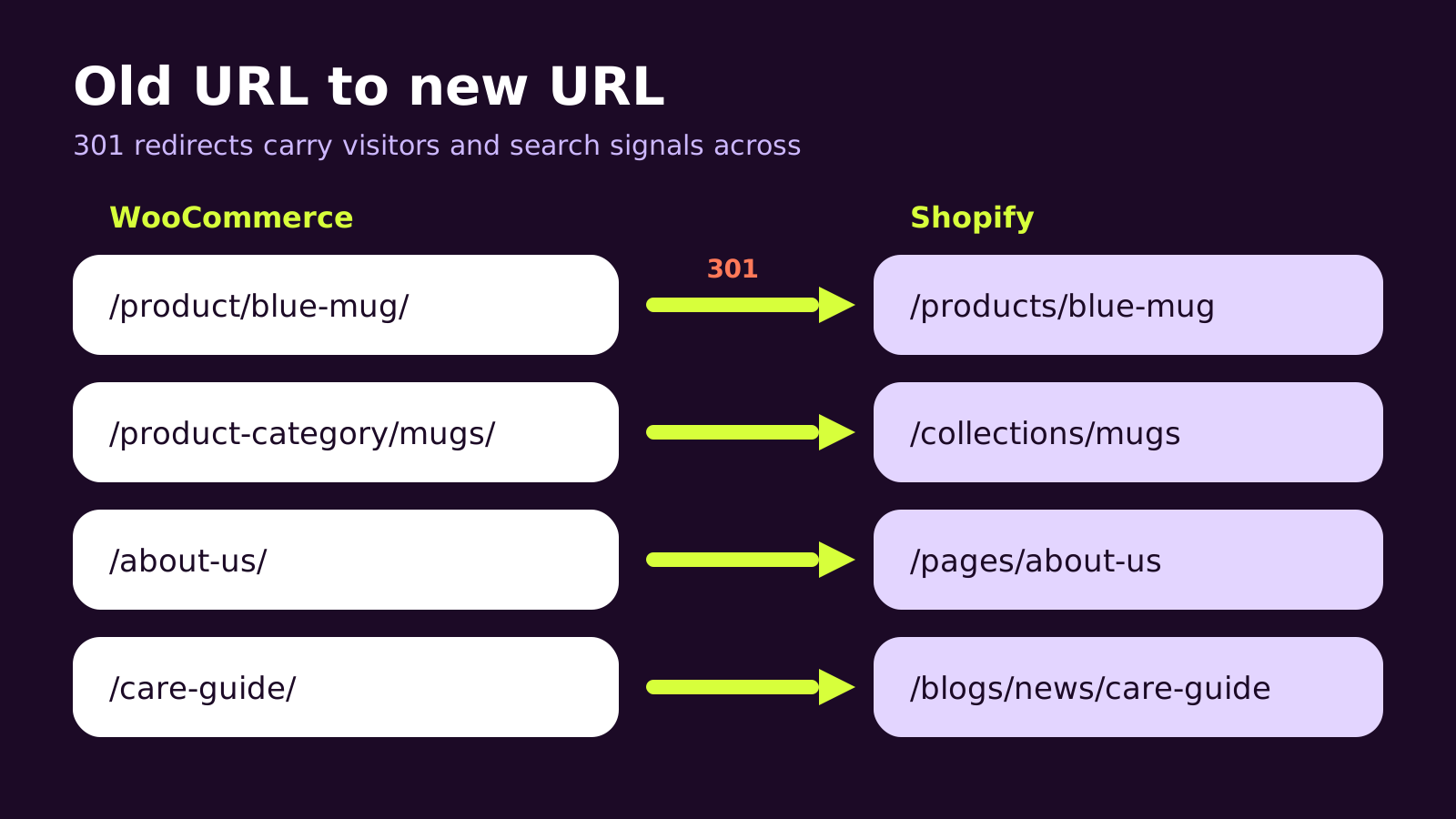
Your URLs. Shopify uses fixed prefixes such as
/products/and/collections/. Every old WooCommerce address changes, which is why redirects sit at the center of the job.
A step-by-step migration plan
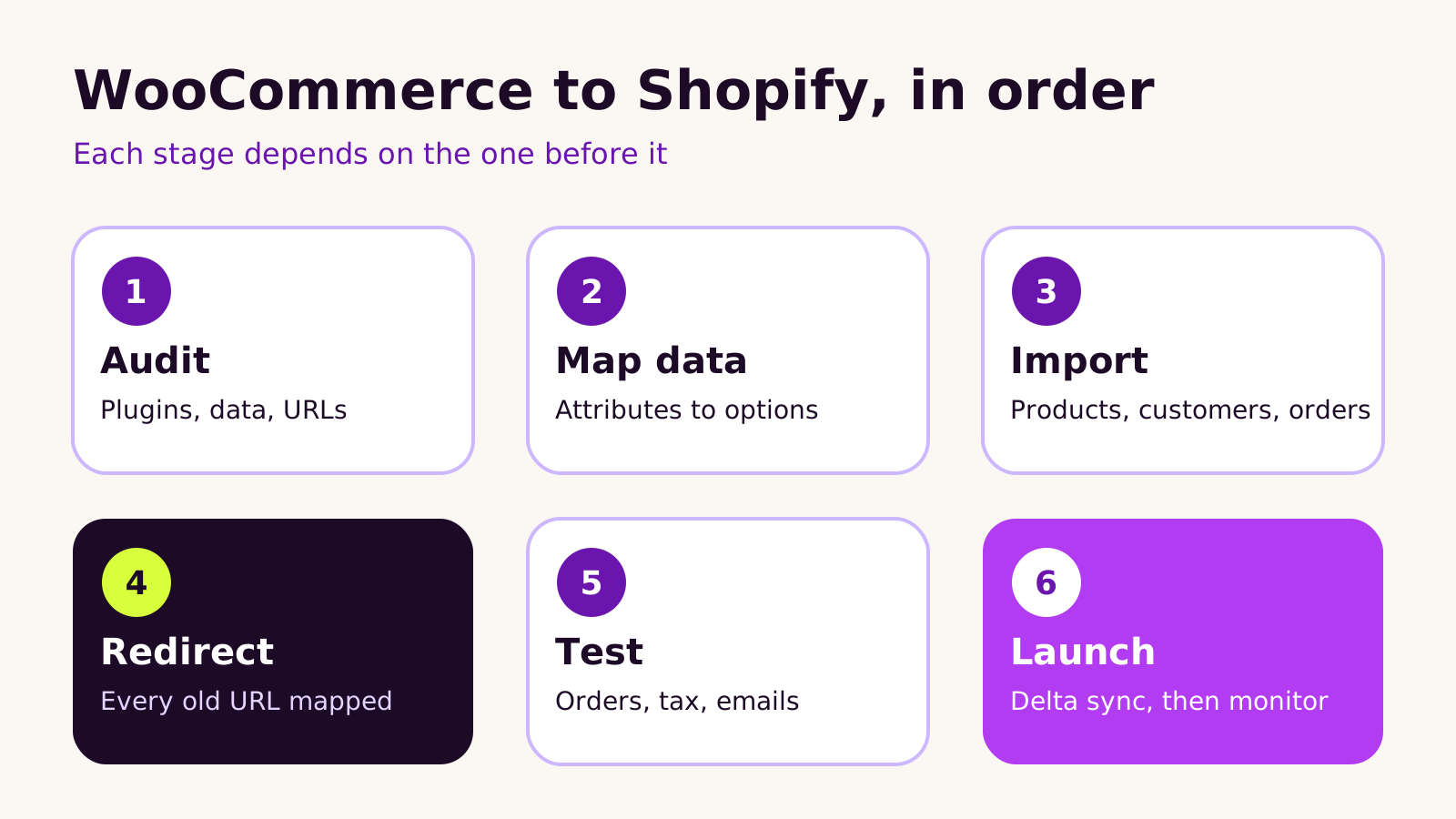
1. Audit what you have
List every active plugin and write down the job it does, not its name: "adds a gift message field", "shows tiered wholesale prices", "sends abandoned cart emails". Then crawl the live site and export every indexable URL, along with the pages that bring in search traffic in Google Search Console. This list becomes your redirect map and your test plan.
2. Map the data
Decide how WooCommerce attributes become Shopify options. Products that vary on four or more attributes need rethinking, because the Store Migration app imports them without variants. Often one attribute becomes a separate product, a metafield or a line item property. Decide which categories become collections, and whether any should be automated collections driven by tags or product type.
3. Import in the right order
Set up the Shopify store with the migration app selected for WooCommerce, then import products, then customers, then orders. Check a sample of each after every import: prices, variant SKUs, stock, images, tax settings and customer addresses. Fix the mapping and re-run rather than patching products by hand.
4. Build the redirect map
In the Shopify admin, go to Content > Menus > URL redirects and use Import with a CSV that has two columns, Redirect from and Redirect to, using relative paths. Shopify won't let you redirect from its own fixed paths like /products or /collections, but WooCommerce's /product/ and /product-category/ paths are fine.
For larger catalogs we generate the file from the WooCommerce REST API instead of building it by hand. This small Node.js script (Node.js 20 or later, which has fetch built in) writes a redirect CSV for every published product and product category. Create a read-only API key under WooCommerce > Settings > Advanced > REST API and pass it in as environment variables.
// build-redirects.mjs
// Run: WC_URL=https://old-store.example WC_KEY=ck_... WC_SECRET=cs_... node build-redirects.mjs > redirects.csv
const { WC_URL, WC_KEY, WC_SECRET } = process.env;
const auth = 'Basic ' + Buffer.from(`${WC_KEY}:${WC_SECRET}`).toString('base64');

async function fetchAll(endpoint, extra = '') {
  const items = [];
  for (let page = 1; ; page++) {
    const url = `${WC_URL}/wp-json/wc/v3/${endpoint}?per_page=100&page=${page}${extra}`;
    const res = await fetch(url, { headers: { Authorization: auth } });
    if (!res.ok) throw new Error(`${endpoint} page ${page}: HTTP ${res.status}`);
    const batch = await res.json();
    items.push(...batch);
    if (batch.length < 100) return items;
  }
}

const rows = [['Redirect from', 'Redirect to']];

for (const p of await fetchAll('products', '&status=publish')) {
  rows.push([new URL(p.permalink).pathname, `/products/${p.slug}`]);
}
for (const c of await fetchAll('products/categories')) {
  rows.push([`/product-category/${c.slug}/`, `/collections/${c.slug}`]);
}

console.log(rows.map(r => r.map(v => `"${v}"`).join(',')).join('\n'));
Two things to adjust. Child categories in WooCommerce live at nested paths such as /product-category/parent/child/, so fix those rows if you use subcategories. And if a Shopify handle ended up different from the WooCommerce slug, compare against a Shopify product export and correct the target. Import a handful of rows first and test them before uploading the full file. Add pages and blog posts the same way, pointing them at /pages/ and /blogs/news/.
5. Test like a customer
Place real test orders with every payment method, shipping zone and discount type you use. Check order confirmation and shipping emails, tax lines, gift cards, and that customers can sign in with the email they used before. Click through your main search landing pages on a phone.
6. Launch and run a delta sync
Pick a quiet window. Pause new orders on WooCommerce, run a final import of anything created since the main migration (most migration apps call this a delta or recent-data migration), connect the domain in Shopify, and submit the new sitemap in Search Console. Then watch 404 reports and Search Console coverage daily for the first few weeks.
What we've learned from store migrations
- Replace plugins by job, not by name. A lot of WooCommerce plugin functions are built into Shopify now, from discounts to B2B features. Install an app only when there's no native option, and keep the list short. Our guide to auditing Shopify apps for cost, speed and data access is a good habit to start from day one.
- Don't redesign and migrate blind. Changing the platform, the design and the URL structure at once makes it hard to tell what caused a dip. If budget allows, we usually keep page content and structure close to the original on launch and improve after. If you're deciding on the design side, see custom vs premium Shopify themes.
- Own the new accounts. The Shopify store, domain, apps and payment provider should be in your business's name, with the agency added as a collaborator. Our checklist on website ownership when you hire an agency covers what to keep.
- When we'd stay on WooCommerce. If the store depends on deep WordPress content features, unusual product logic that doesn't fit options and variants, or custom integrations that would be costly to rebuild, a well-maintained WooCommerce site can still be the right call. Moving should solve a real problem.
We've also written a similar plan for Magento 2 to Shopify migration, if you're comparing routes.
Troubleshooting common migration problems
Products imported with no variants
Likely cause: the product used four or more variation attributes. Fix: reduce it to three options and move the extra attribute into a metafield, a line item property or a separate product, then re-import that product.
Old URLs still show a 404 page
Likely cause: the redirect's "from" path doesn't exactly match the old URL, often because of a trailing slash, letter case or encoded characters. Fix: copy the exact path from your crawl or Search Console's 404 report, and test it with a browser or curl -I to confirm a 301.
Customers say they can't log in
Likely cause: they're trying their old password, which never transferred, or the store is still on legacy customer accounts. Fix: switch to new customer accounts so people sign in with a one-time email code, and add a short note to the login page explaining the change.
Orders appear without linked customers
Likely cause: orders were imported before customers. Fix: import customers, then re-run the order import, which most migration apps allow.
Questions people ask
Will I lose my Google rankings?
Rankings can wobble after any platform change, but a complete redirect map, matching titles and content, and a resubmitted sitemap help you keep what you've built. Missing redirects are the usual cause of lasting drops.
Can I migrate WooCommerce to Shopify myself?
For a small catalog with simple products, yes, using Shopify's Store Migration app and a careful redirect CSV. Once you have complex variants, subscriptions, wholesale pricing or integrations, hiring a Shopify developer usually saves time and mistakes.
Why a careful migration matters for your store
A migration is judged on the first week after launch: can customers sign in, do orders reach fulfillment, and do search visitors land on real pages? Done in the right order, a WooCommerce to Shopify migration leaves you with fewer moving parts, less infrastructure to look after and more time for selling.
Quick checklist before you start:
- Plugin list rewritten as jobs, each matched to a Shopify feature or app
- Full URL export and a tested redirect CSV
- Variant mapping decided for complex products
- Import order: products, customers, orders, then a delta sync
- Test orders, emails and sign-in on mobile
- Search Console sitemap submitted and 404s monitored
If you'd like a hand planning or running the move, our Shopify development team handles migrations from WooCommerce end to end, and you can tell us about your store whenever you're ready.
(over to you)
Planning a build like this?
Tell us what you're building and we'll come back with ideas and next steps.