WooCommerce multi-currency: how to set it up without surprises
How WooCommerce multi-currency really works: base price, exchange rates, rounding, checkout and payouts. Choose an approach, set it up step by step and fix the caching and checkout problems stores hit.
WooCommerce multi-currency lets shoppers see and pay in their own currency, but it only works well when you understand the three separate layers: the price a shopper sees, the amount they are charged, and the money you are paid out.
WooCommerce itself still keeps one base currency. A multi-currency tool converts that base price using an exchange rate, then applies rounding so prices look tidy. With WooPayments this is built in. Stores that also run several languages often use a multilingual plugin instead, and stores on another payment gateway usually need a dedicated currency plugin.
To set it up, decide which currencies you really need, switch on the feature, add each currency, choose automatic or manual rates, and turn on rounding. Then exclude the cart and checkout from page caching, and test a real order in each currency, including a refund.
The common problems are cached pages showing the wrong currency, a gateway that cannot charge in a currency, and shipping or coupon amounts that look odd after conversion.
Next, list the currencies your buyers actually use and test one full order before you add the rest.
This guide is for store owners and marketing leads running WooCommerce who want shoppers to see and pay in their own currency. You'll learn how WooCommerce multi-currency actually works under the hood, which of the common approaches fits your store, how to set it up step by step, and how to fix the problems we see most often after launch.
The problem: shoppers hesitate when the price isn't in their currency
A buyer lands on a product page, likes what they see, and then has to stop and work out what the price means in their own money. Some do the sum and carry on. Plenty don't. Others get to checkout and find their card statement will show a conversion they didn't expect, which is exactly the kind of doubt that ends a sale.
Out of the box, WooCommerce sells in one currency. You set it under WooCommerce > Settings > General > Currency options, and every price, shipping rate and coupon lives in that currency. That's fine until you start selling to buyers who think in a different one. At that point you need a layer on top of WooCommerce that converts prices, lets shoppers switch, and charges them correctly.
The catch is that "multi-currency" means different things in different tools. Some only change the number on the screen. Some also charge the card in the shopper's currency. Few change how you get paid. Knowing which is which saves a lot of awkward conversations with your finance team.
How WooCommerce multi-currency actually works
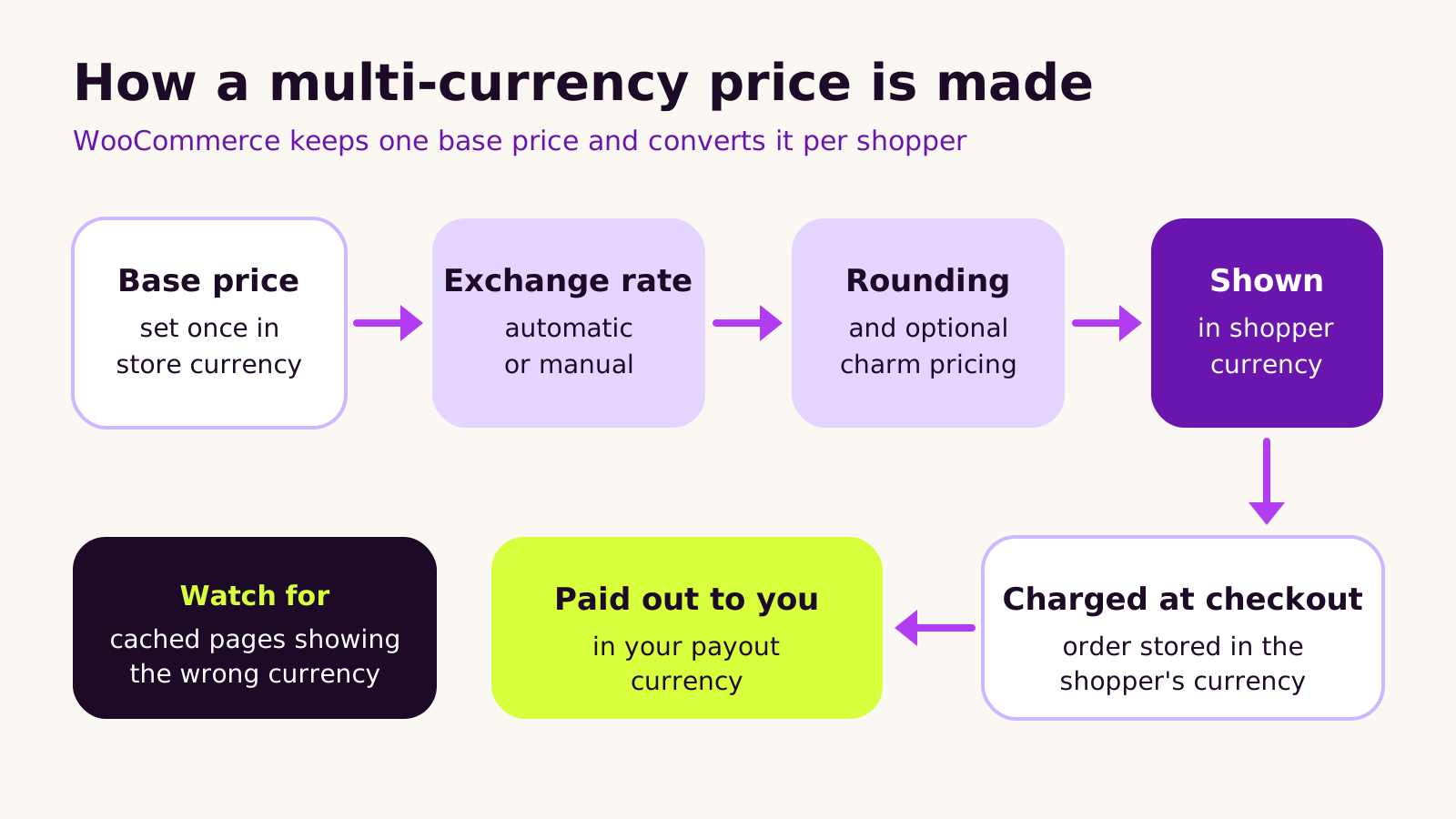
Almost every WooCommerce multi-currency setup follows the same model. You keep one base currency in WooCommerce, and your products are priced in it. A plugin then sits between the database and the shopper and converts each price on the fly.
That conversion has a few steps:
- 1 Exchange rate. The tool fetches a rate automatically on a schedule, or you type in a manual rate. Automatic rates aren't live to the minute, so the shopper sees a close, recent figure rather than the exact market rate.
- 2 Rounding. A raw conversion produces messy prices. Rounding pushes the converted price up to a tidy increment. In WooPayments, rounding also applies to tax, shipping and fees, not just product prices.
- 3 Charm pricing (optional). After rounding, the price can be nudged just below a round number. In WooPayments this only affects product prices, and it relies on rounding being switched on.
Then come three separate moments that people often blur together:
- What the shopper sees: the converted, rounded price in their chosen currency.
- What the shopper is charged: the order is placed and stored in that currency, if your payment gateway supports charging in it. Refunds then go back in the currency they paid.
- What you receive: your payment provider pays out in your payout currency. WooPayments is clear on this point: turning on multi-currency changes how prices are shown, not the currency you're paid in. Payout currencies are a separate setting with their own rules.
There's one more piece that matters a great deal on real sites: caching. A converted price depends on who's looking. A full-page cache stores one copy of a page and serves it to everyone. Put those two together carelessly and a visitor can see a page cached in someone else's currency.
Choosing your approach
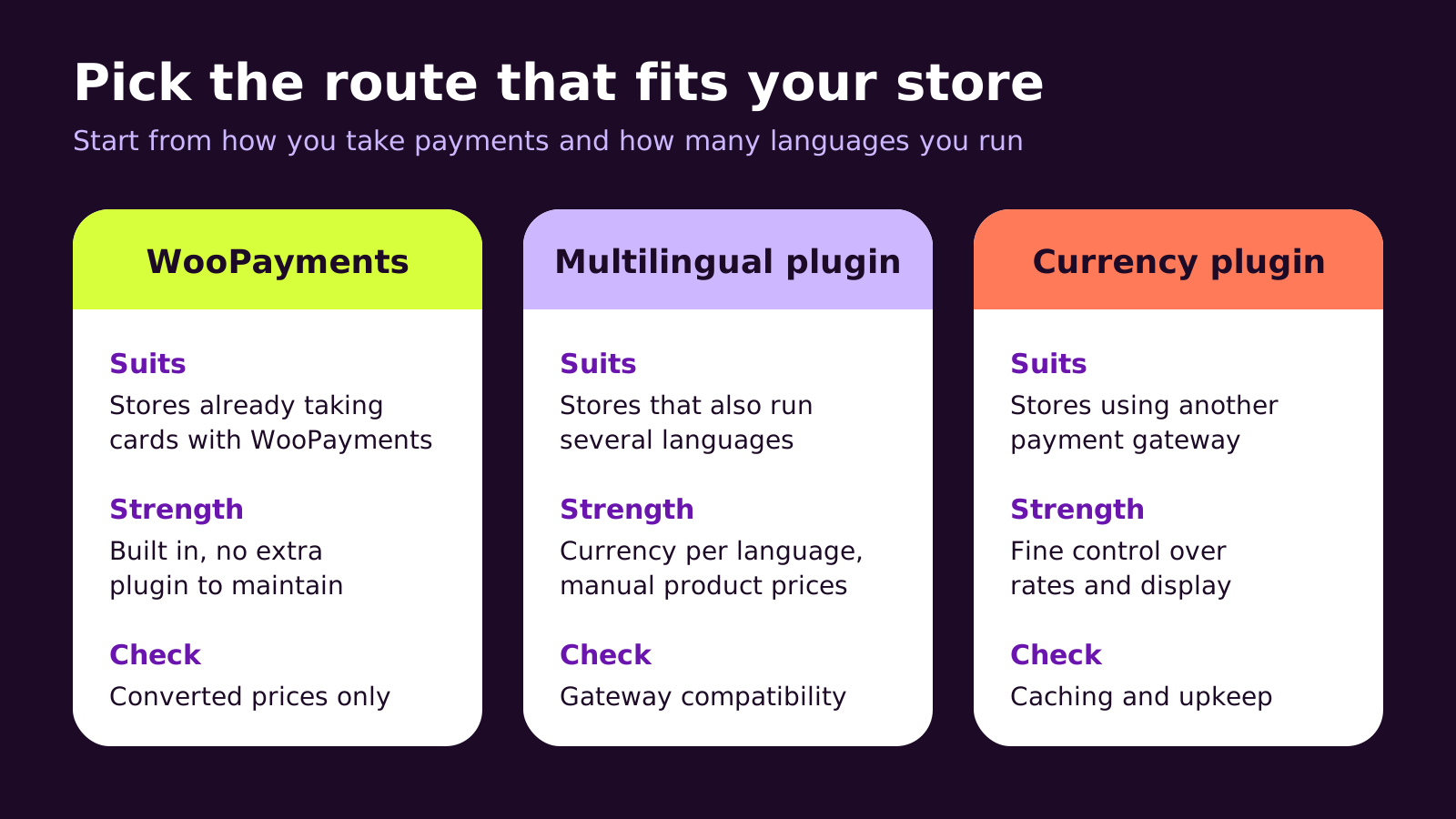
There are three routes we see on most stores. The right one depends mainly on your payment gateway and whether you also run more than one language.
| Route | Fits best when | What to check |
|---|---|---|
| WooPayments built-in multi-currency | You already take cards with WooPayments and want converted prices without another plugin | Prices are converted from the base price; the currencies on offer and payout options depend on your account |
| WPML Multilingual & Multicurrency for WooCommerce | You run several languages and want a currency tied to each, or set prices by hand per currency | That your gateway can charge in each currency you add |
| A dedicated currency plugin | You use a different gateway, or need finer control over rates and display | Caching compatibility, update history and checkout support |
In most projects we'd start with what the store already uses. If WooPayments is your gateway, its built-in feature is usually enough and means one less plugin to keep updated. If the site is multilingual, keeping language and currency in the same tool avoids two plugins fighting over the same pages.
Setting it up step by step with WooPayments
Here's the order we follow. Do it on a staging copy first, never straight on a live store during trading hours.
- 1 Confirm your base currency. Check WooCommerce > Settings > General. Changing it later reprices everything, so settle it before you begin.
- 2 Switch the feature on. In WooPayments, go to Payments > Settings, open Advanced settings and tick Enable Multi-Currency.
- 3 Add only the currencies you need. On the multi-currency settings screen, add the currencies your buyers actually use. Every extra currency is another set of prices to check.
- 4 Set each currency's rate and rounding. Open each currency, choose automatic rates or a manual rate, then pick a rounding increment. Add charm pricing only if it suits your brand.
- 5 Decide how shoppers switch. You can let the store switch visitors to their local currency automatically and add a currency switcher to your header or checkout. Geolocation isn't perfect, so always give people a visible switcher too.
- 6 Fix caching. Exclude cart, checkout and account pages from page caching, and if your WooPayments version offers the cache-optimized rendering mode, use it on sites with full-page caching.
- 7 Test real orders. Place an order in each currency with a real card on a small product, check the order screen, the email and your payment dashboard, then refund it.
A small helper for your finance team
Once orders arrive in several currencies, the orders list can get confusing, because some currencies share a symbol. This snippet adds a Currency column to the WooCommerce orders screen when High-Performance Order Storage (HPOS) is on, which is the default for new stores. Put it in a small custom plugin or your child theme's functions.php, and change the text domain to your own.
<?php
// Add a "Currency" column to the WooCommerce orders list (HPOS screen).
add_filter( 'manage_woocommerce_page_wc-orders_columns', function ( $columns ) {
    $columns['order_currency'] = __( 'Currency', 'your-textdomain' );
    return $columns;
} );

add_action( 'manage_woocommerce_page_wc-orders_custom_column', function ( $column, $order ) {
    if ( 'order_currency' === $column && $order instanceof WC_Order ) {
        echo esc_html( $order->get_currency() );
    }
}, 10, 2 );
If your store still uses legacy post-based order storage, the equivalent hooks are manage_edit-shop_order_columns and manage_shop_order_posts_custom_column, where the second receives a post ID rather than an order object.
What we've learned from multi-currency stores
The setup screens are the easy part. The work is in the details around them.
- Too many currencies, too soon. We usually launch with the few currencies buyers actually ask for and add more once the first ones are clean.
- Shipping and coupons get forgotten. A flat shipping rate or a fixed-amount coupon converts too, and the result can look odd. Review them in every currency, and consider percentage coupons where they fit.
- Tax is a question for your adviser. Selling in more currencies can raise questions about tax display and reporting. We set up what the store needs; the rules for your situation should come from a qualified adviser.
- Reports need a decision. Agree up front whether finance reports in the base currency or by order currency, and check what your analytics and accounting integrations receive.
We wouldn't add multi-currency to a store whose buyers almost all share one currency. It adds testing and upkeep without much gain. A clear note about currency on product pages can be enough there.
Troubleshooting
Symptom: a page shows a different currency from the one the shopper picked. Likely cause: full-page caching or a CDN is serving a copy cached for another visitor. Fix: exclude cart, checkout and account pages from caching, switch on your plugin's cache-compatible mode, and purge the cache.
Symptom: the currency resets to the base currency between pages. Likely cause: the currency cookie is being stripped or ignored by the caching layer. Fix: tell your caching plugin or host not to serve cached pages when the currency cookie is set, then test logged out in a private window.
Symptom: a currency appears on the storefront but checkout fails or falls back. Likely cause: the active payment method can't charge in that currency. Fix: check which currencies your gateway supports for your account and remove, or hide at checkout, any it can't handle.
Symptom: prices look slightly different from an online converter. Likely cause: rates are fetched on a schedule and rounding is applied. Fix: nothing is broken; if you need fixed figures, use manual rates.
Questions people ask
Does WooCommerce support multiple currencies on its own?
WooCommerce core keeps a single store currency. Multi-currency comes from WooPayments or a plugin that converts prices and handles switching. That plugin then becomes part of your store's maintenance.
Will I get paid in each currency?
Not automatically. Showing and charging in a currency is separate from payouts. Your payment provider decides which payout currencies you can use, so check its settings and fees before you launch.
Can I set my own price for each currency?
Some tools let you enter prices by hand per currency, which helps when you want clean, market-specific prices. Others only convert from the base price. Check this before you pick a tool if it matters to you.
Why it matters for your store
Showing the right currency removes a small but real reason to leave. Done well, it reads as a store that understands its buyers. Done badly, with wrong currencies on cached pages or failed payments at checkout, it costs trust at the worst moment. That's why we treat multi-currency as part of the checkout, not as a widget.
It also sits alongside the rest of your store's care: keeping WooCommerce current (our WooCommerce 11 update guide covers what to check), picking the right gateway (see how we set up WooCommerce payment gateways and checkout), and keeping pages fast once caching rules change (our Core Web Vitals guide helps there). If you're weighing platforms, our bilingual right-to-left Shopify store guide shows how the same problem looks on Shopify.
Quick checklist before launch:
- Base currency confirmed and not changing.
- Only the currencies buyers use, each with rate and rounding set.
- Visible currency switcher, with automatic switching as a convenience only.
- Cart, checkout and account excluded from caching.
- Gateway confirmed for every currency, and payout currency understood.
- A real order and refund tested in each currency.
If you'd like a second pair of hands on a multi-currency rollout, our WordPress and WooCommerce development service can plan, build and test it with you, or you can simply tell us about your store.
(over to you)
Planning a build like this?
Tell us what you're building and we'll come back with ideas and next steps.
Keep reading
All articles WordPress
· 5 min read
Best PHP version for WordPress in 2026: upgrade before 8.2 ends
Read article
 WordPress
· 5 min read
WooCommerce payment gateways in India: how to set up checkout properly
Read article
 WordPress
· 5 min read
WooCommerce 11 updates: what changed in 2026 and how to update
Read article