Back button hijacking: find and fix it before Google does
Google treats back button hijacking as spam and added an FAQ to the policy in November 2026. How the History API gets misused, a script to trace which code adds history entries, and fixes for React, Next.js, Shopify and WordPress sites.
Back button hijacking is when a page stops visitors from going straight back to where they came from. Google treats it as spam, and on November twenty-third, 2026, it added an FAQ to the policy. The FAQ makes one thing clear: Google acts on the page that shows the behavior, even when an ad script or a third-party app is to blame.
The cause is almost always the browser's History API. A script adds fake history entries when the page loads, or listens for the Back button and sends people to an offer instead.
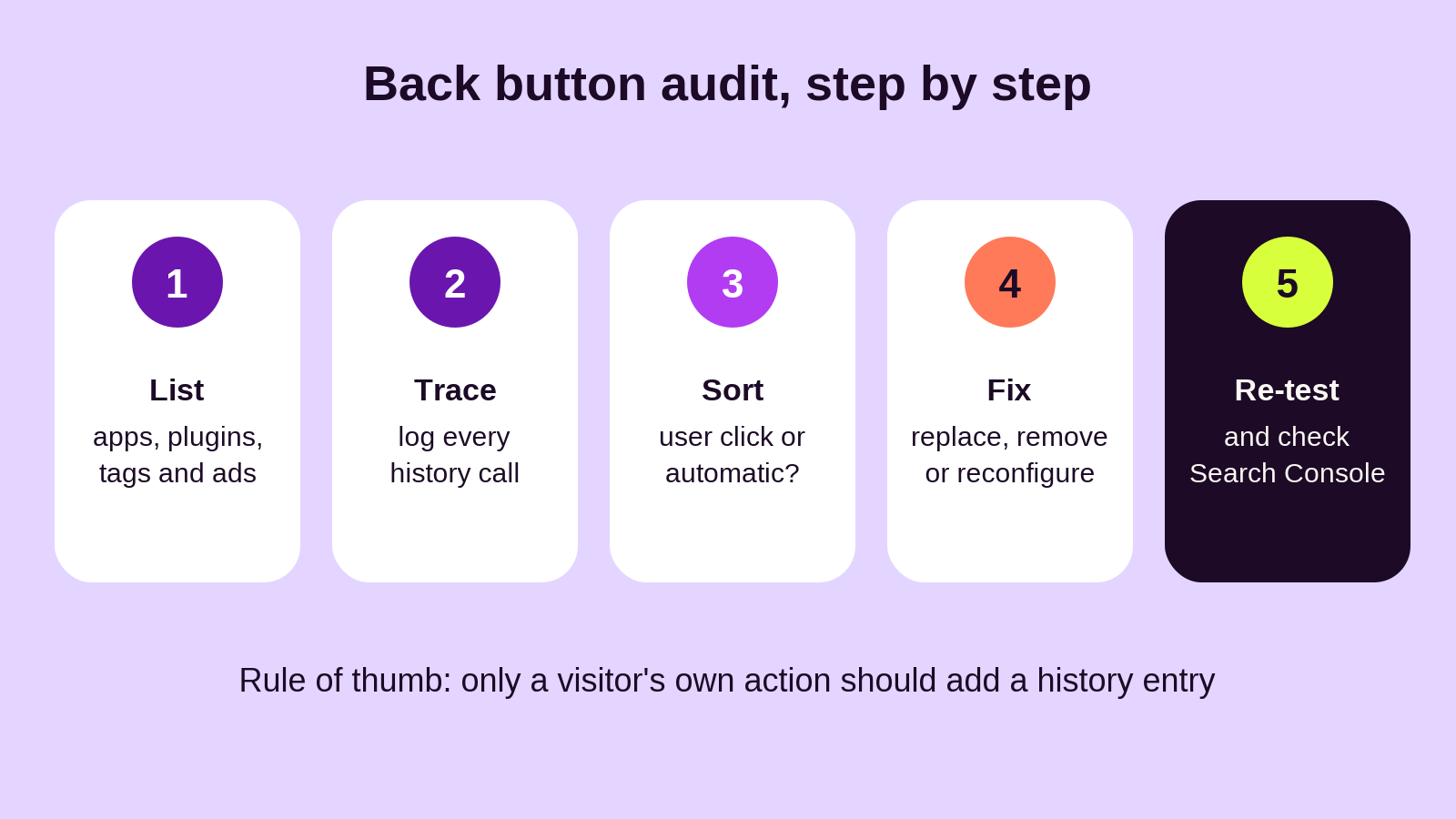
To check your site, list every app, plugin, tag and ad script. Then trace each history call with a short Playwright script and sort them: entries added because a visitor clicked are fine, entries added automatically are the problem. Fix those by switching to replace instead of push, changing the app's settings, or removing the script. Re-test, and look at the Manual actions report in Search Console.
If you'd like a second pair of eyes, the article links to our Next.js development service.
If you run a marketing site or online store, this guide shows you how to check whether your pages commit back button hijacking, the practice Google now treats as spam, and how to fix it on React, Next.js, Shopify and WordPress builds. Google added the policy to its spam rules in April 2026, started enforcing it in June 2026, and on November 23, 2026 added an FAQ to the malicious practices section of its spam policies to answer the questions site owners kept asking.
The FAQ matters because of one answer in particular. Google says it acts on pages that show the behavior, and that includes cases where the code came from an ad platform or a library you installed. "An app did it" isn't a defense. So the job falls to whoever owns the site, which usually means you and your developer.
The problem: visitors press Back and go nowhere
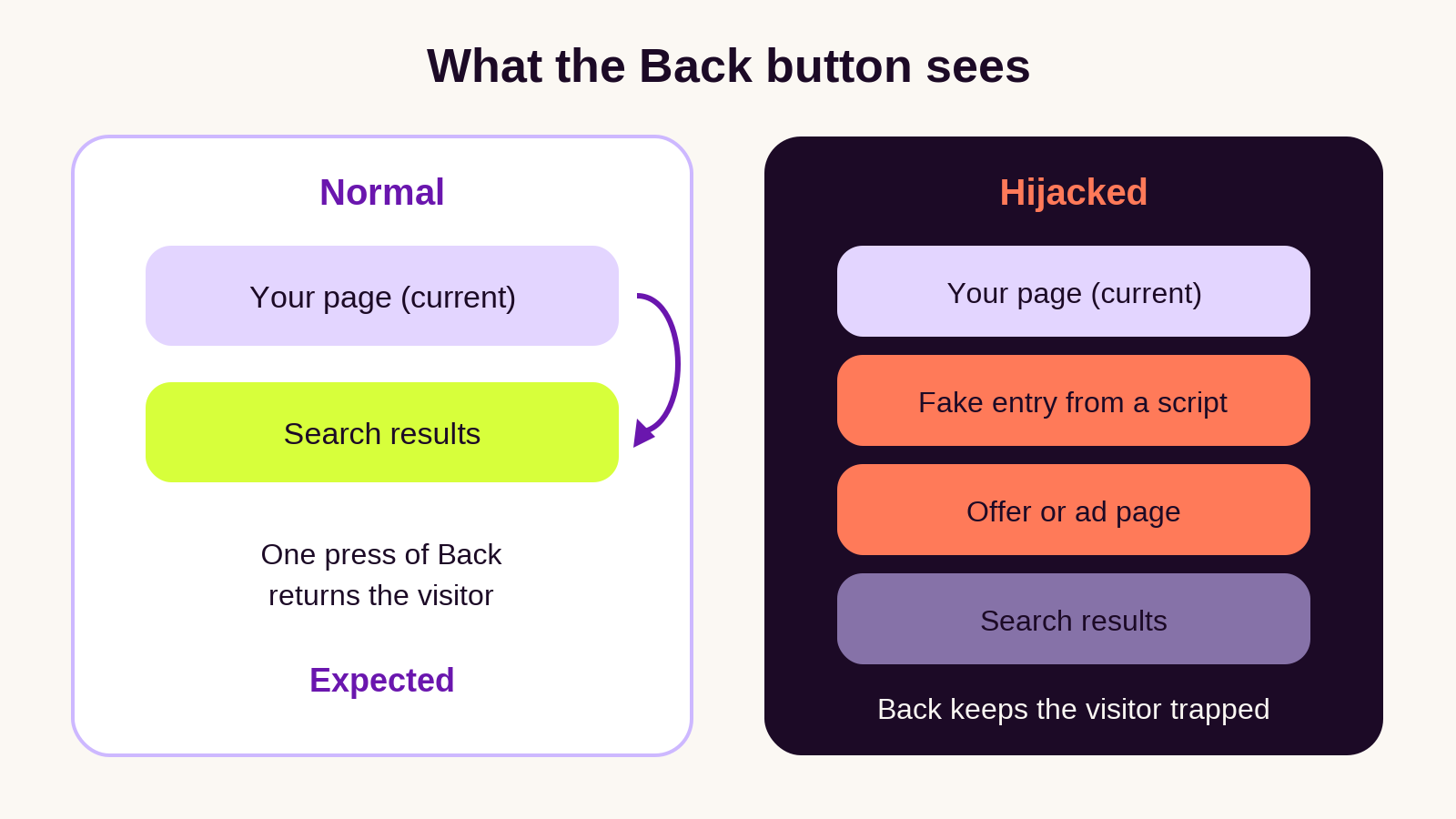
A visitor lands on your product page from search, decides it isn't for them and presses Back. Instead of returning to the results, they see the same page again, or a "wait, before you go" offer, or an ad. They press Back two or three more times and finally escape, annoyed.
Most businesses don't build this on purpose. It usually arrives with something else: an exit-intent pop-up app, an upsell plugin, an ad network tag, an affiliate script, or a front-end change where a developer used the wrong history method. Because it only shows up when you arrive from somewhere else and try to leave, nobody on the team notices while editing the site.
Google's spam policies describe back button hijacking as interfering with navigation by manipulating browser history so people can't immediately return to the page they came from. Pages that do it can receive a manual action or be demoted automatically. The FAQ also confirms the policy covers Discover, and that app navigation and "open in app" behavior are outside its scope.
How it actually works in the browser
Every tab keeps a list of history entries. Clicking a normal link adds an entry; pressing Back moves one step down the list. Single-page apps, including React and Next.js sites, need to change the URL without a full page load, so the browser gives them the History API:
-
history.pushState()adds a new entry. Back will return to the previous one. -
history.replaceState()rewrites the current entry. Back is unaffected. -
The
popstateevent fires when the visitor moves between entries the page created, so the app can show the right view.
All three are legitimate. The Next.js App Router, React Router and most storefront themes rely on them. Hijacking happens when they're used without the visitor asking for it. The two patterns we see most:
-
1
Stuffing the stack. A script calls
pushStateonce or several times as the page loads, so the first press of Back just pops a fake entry and the visitor stays put. -
2
Redirecting on popstate. A script adds one entry, then listens for
popstate. When the visitor presses Back, it sends them to an offer page or reloads a different URL.
Chromium-based browsers already skip some entries that were added without a user gesture, which is why the problem can look fine in one browser and broken in another. Don't rely on that. Google's policy judges the behavior of the page, not whether one browser happens to soften it.
How to find back button hijacking on your site
The test is simple to describe: open a page in a fresh tab coming from another site, press Back once, and see whether you leave. Do that on your home page, a product or service page, a blog post and any landing page that runs ads. Repeat on a phone, because many pop-up and ad tools load different code on mobile.
A manual test tells you that something is wrong. To find out which script is responsible, trace every history call. This small Playwright script does that by wrapping the History API before any of your page's code runs, then printing a stack trace for each call.
// audit-history.mjs  (run: node audit-history.mjs https://example.com/page)
import { chromium } from 'playwright';

const url = process.argv[2];
const browser = await chromium.launch();
const page = await browser.newPage();

await page.addInitScript(() => {
  for (const fn of ['pushState', 'replaceState']) {
    const original = history[fn].bind(history);
    history[fn] = (...args) => {
      console.log(`[history] ${fn} ${String(args[2] ?? '')}\n${new Error().stack}`);
      return original(...args);
    };
  }
  const add = EventTarget.prototype.addEventListener;
  EventTarget.prototype.addEventListener = function (type, ...rest) {
    if (type === 'popstate') console.log(`[history] popstate listener\n${new Error().stack}`);
    return add.call(this, type, ...rest);
  };
});

page.on('console', (msg) => {
  if (msg.text().startsWith('[history]')) console.log(msg.text(), '\n');
});

await page.goto(url, { waitUntil: 'networkidle' });
await page.waitForTimeout(5000); // give delayed tags time to load
console.log('history.length:', await page.evaluate(() => history.length));
await browser.close();
Install Playwright in any folder (npm i playwright, then npx playwright install chromium), save the file there and pass the URL you want to check. Nothing is clicked during the run, so any pushState you see happened automatically. The stack trace shows the script URL, which tells you whether it's your own bundle, a theme file, an app or an ad tag. Expect your framework's router to show up: Next.js and React Router register a popstate listener and may call replaceState on load, and both are normal.
Fixing what you find
-
Your own React or Next.js code. Anything that updates the URL automatically (filters restored from storage, a default tab, tracking parameters being cleaned) should use
router.replace()in Next.js orhistory.replaceState(), not push. Keeprouter.push()for things the visitor clicked. - Shopify apps. Check exit-intent, upsell and "spin to win" apps in Settings > Apps and sales channels. Look in each app's settings for anything about the Back button or exit offers and switch it off. If there's no setting, disable the app's theme app embed in Online Store > Themes > Customize > App embeds and re-test.
- WordPress plugins. Pop-up, redirect and ad plugins are the usual source. Deactivate suspects one at a time on a staging copy and re-run the trace.
- Ad and tag manager code. Use your tag manager's preview mode to see which tags fire on the page, pause the one the stack trace points to, and raise it with the ad platform. Google's FAQ is explicit that you can keep working with ad platforms, but the page is judged on what it does.
What we've learned from auditing sites
The biggest lesson is that the culprit is rarely the code anyone remembers writing. It's the tag added for a campaign two years ago, or an app installed to test an offer and never removed. That's why we start every audit with an inventory: theme, apps or plugins, tag manager containers, and any script pasted into a header field.
We'd also recommend making the rule part of your build standard rather than a one-off check: only a visitor's action should add a history entry. Add the trace script to your pre-launch checklist and run it again whenever a new app or tag goes in. If you're changing pop-up tools anyway, a native dialog that doesn't touch history at all is usually the simpler route, as we covered when looking at rebuilding pop-ups with native modal and popover elements.
One trade-off to be honest about: removing an exit offer may remove something your marketing team liked. Exit-intent pop-ups that appear when the cursor leaves the window don't touch history and aren't what this policy describes, so there's often a compliant way to keep the offer.
Troubleshooting
| Symptom | Likely cause | Fix |
|---|---|---|
| Back reloads the same page once before leaving | A variant picker, filter or tab writes the URL with pushState on load |
Use replaceState or router.replace() for anything set automatically |
| Back opens a "wait, don't go" offer | A pop-up or upsell app listens for popstate and redirects |
Turn off its Back button or exit setting, or remove the app |
| Only happens on some visits or on mobile | An ad or tag loads conditionally through a tag manager | Trace on a mobile viewport, find the tag in preview mode, pause it |
| Closing a modal needs two presses of Back | The modal pushes an entry even when opened automatically | Push only on the opening click; call history.back() on close |
| Trace looks clean but the problem persists | The script loads after the five-second wait, or only after scrolling | Increase the wait, scroll the page in the script, re-run |
Questions people ask
Will Google penalize my whole site?
Google's policy talks about action on the pages that show the behavior, through a manual action or an automated demotion. If you have a manual action, it appears in Search Console under Security & Manual actions > Manual actions, where you can request a review once it's fixed.
Is using pushState in my React app risky now?
No. Pushing an entry when a visitor clicks to a new view is how single-page apps are meant to work. The policy is about entries added to stop people from leaving, not normal client-side routing.
Our ad network added the code. Is it still our problem?
Yes. Google's FAQ says it acts on pages that exhibit the behavior, whoever wrote the script. Raise it with the ad provider and pause the tag until it's fixed.
Why it matters for your business
Search visibility is the obvious reason, but the bigger one is trust. A visitor who can't leave your site doesn't come back, and a demoted product or service page loses the people who were close to buying. The fix is usually small once you know which script is responsible; the hard part is finding it.
That makes it a good item for your care plan and for any developer you hire: ask how they handle history in client-side routing and whether they check third-party scripts before launch. It sits alongside other upkeep we've written about, like applying the November 2026 Next.js security patches and keeping Googlebot crawling through a CDN migration.
A quick checklist to finish:
- Test Back from a fresh tab on your key page types, on desktop and mobile.
-
Run the trace script and note every automatic
pushStateandpopstatelistener. - Switch automatic URL updates to replace, and remove or reconfigure the apps and tags behind the rest.
- Check Search Console's Manual actions report and request a review if needed.
- Add the check to your launch and app-install routine.
If you'd like us to run the audit or tidy up the routing, our Next.js development service covers it, or you can tell us about your site.
(over to you)
Planning a build like this?
Tell us what you're building and we'll come back with ideas and next steps.
Keep reading
All articles React & Next.js
· 8 min read
Chrome Web Install API: adding an install button to your web app
Read article
 React & Next.js
· 6 min read
React Compiler in production: how to roll it out safely
Read article
 React & Next.js
· 8 min read
Figma Motion handoff: getting website animation built right
Read article