Branded search reporting with the new Search Console API filters
Google added branded queries, visual search and filter lists to the Search Analytics API in November 2026. How branded search reporting works, a Node.js script to pull the split daily, and fixes for common problems.
Google's Search Analytics API can now split your search traffic into branded and non-branded searches. Google announced this on November sixteenth, 2026, so the split no longer has to be copied out of Search Console by hand.
Branded searches come from people who already know your name. Non-branded searches are new customers looking for what you sell. Reading them as two lines shows whether your marketing or your website is doing the work.
The API adds a branded classification dimension, a visual search type for Google Lens and image searches, and filter lists for matching several devices at once. Data starts in February 2026, it only covers top-level properties with enough traffic, and it can't be combined with a query filter.
To build it, create a service account, add it to your domain property in Search Console, run a small daily Node.js job, store the rows, and chart the dashboard from your own table.
If a request returns nothing, check the property and the dates first. Then start with a simple two-line report and grow from there.
Branded search reporting splits your Google search traffic into searches that include your company or product name and searches that don't. When clicks rise in a monthly report, that split shows whether new customers are finding you or people who already know you are coming back. This post is for business owners and marketing leads who want it in their own dashboards, and for the developers who will build it: what Google changed, how the data behaves, and how to pull it with a short Node.js job.
On November 16, 2026, Google announced that the Search Analytics API now supports the branded queries filter that Search Console added to its Performance report a year earlier. The same update added a web multimodal search type (searches from Google Lens, Circle to Search and image uploads) and filter lists, which let one request match several devices or markets at once. Until this month, the branded split lived only in the Search Console screen, so it couldn't feed a dashboard, a CRM or a scheduled report without someone exporting it by hand.
Why branded and non-branded traffic need separate lines
Branded searches are people typing your company or product name. They mostly come from word of mouth, ads, events, sales calls and returning customers. Non-branded searches are people looking for what you sell ("Shopify agency for a fashion brand", "accounting software for clinics") who may never have heard of you.
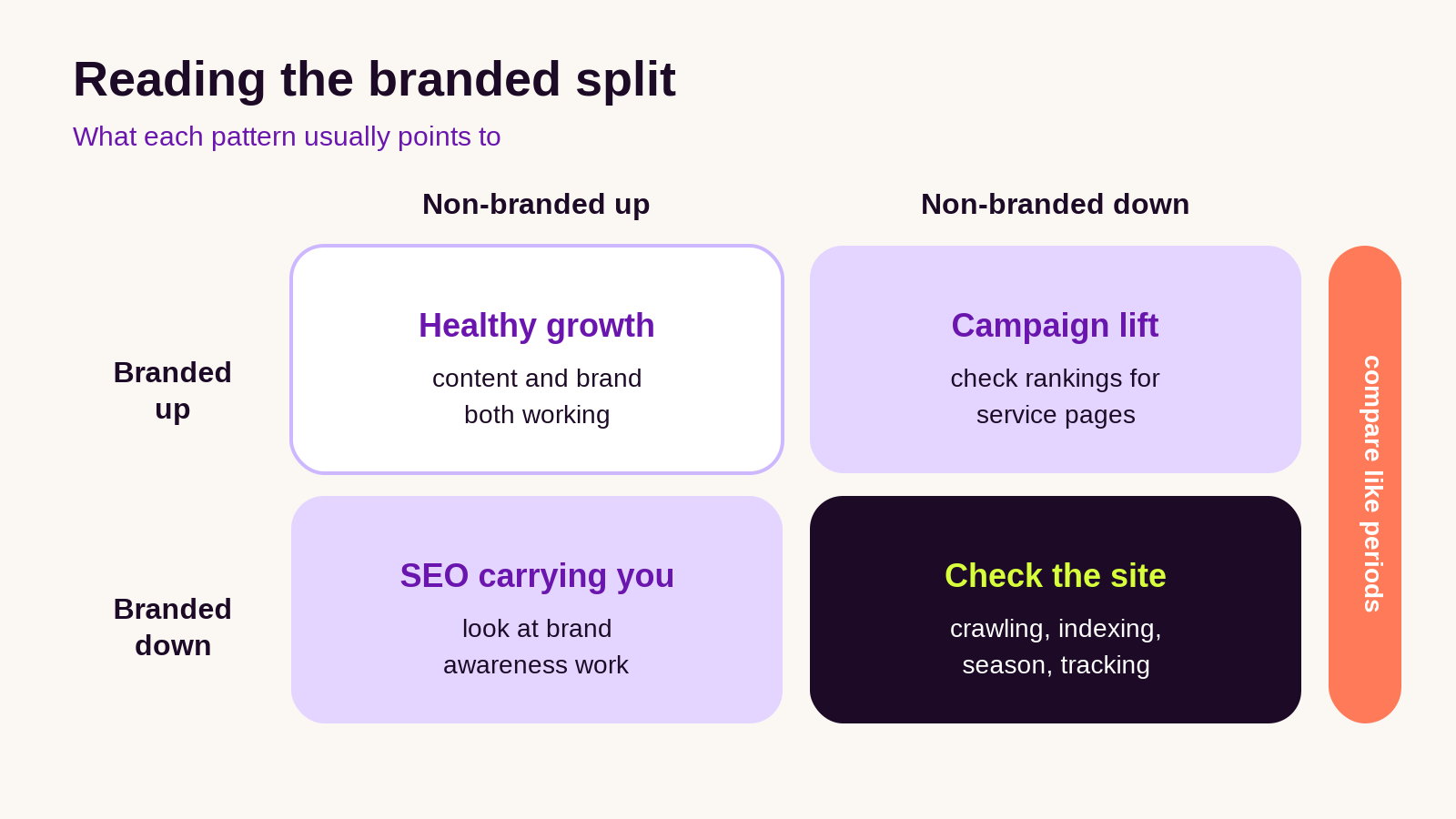
Mix the two together and the report hides what's happening. A strong ad campaign can lift branded clicks while your service pages quietly lose rankings, and the total looks fine. The reverse happens too: brand awareness slips, but new content keeps the total steady. Neither is visible until the lines are separate.
Before this change, teams approximated the split with a regular expression on the query dimension (anything matching your brand name and its misspellings). That works, but someone has to maintain the pattern, and it misses variants nobody thought of. Google's own classification is now available through the API, so the dashboard can use the same split that people see in Search Console.
How the branded filter works in the Search Analytics API
The API adds a dimension called brandedClassification with two values, BRANDED and NON_BRANDED. You can group by it (so every row comes back labelled) or filter by it with the equals operator. A few behaviours matter before anyone builds on it:
- Google decides what counts as branded. Google describes the classification as coming from an internal, AI-assisted system rather than a pattern you supply. It covers your brand name and product names, and Google notes that some queries may be misclassified.
-
Not every property gets it. The data is available only for top-level properties with enough query and impression volume. A domain property (
sc-domain:example.com) is the safest choice. If a property isn't eligible, the API simply returns no rows. - History starts on February 21, 2026. Requests for earlier dates won't return a branded split, so year-on-year comparisons have to wait.
-
It can't be combined with a query filter. If a request groups or filters by
brandedClassification, it can't also filter onquery. You'd make two requests instead.
Filter lists are the other half of the update. Inside a dimensionFilterGroups entry, a filterLists item takes one dimension (device or country) and an expressions array, and a row matches if its value equals any of them. One rule to remember: you can't filter the same dimension in both filters and filterLists in one request.
Finally, setting type to webMultimodal returns performance for visual searches. It's a separate search type, like image or news, not a filter on web results. For product-led stores it's worth a line of its own.
How to build branded search reporting with Node.js
Here is the setup we'd use for most clients. It keeps the API out of the dashboard itself, which makes reports fast and stops them breaking when a token expires.
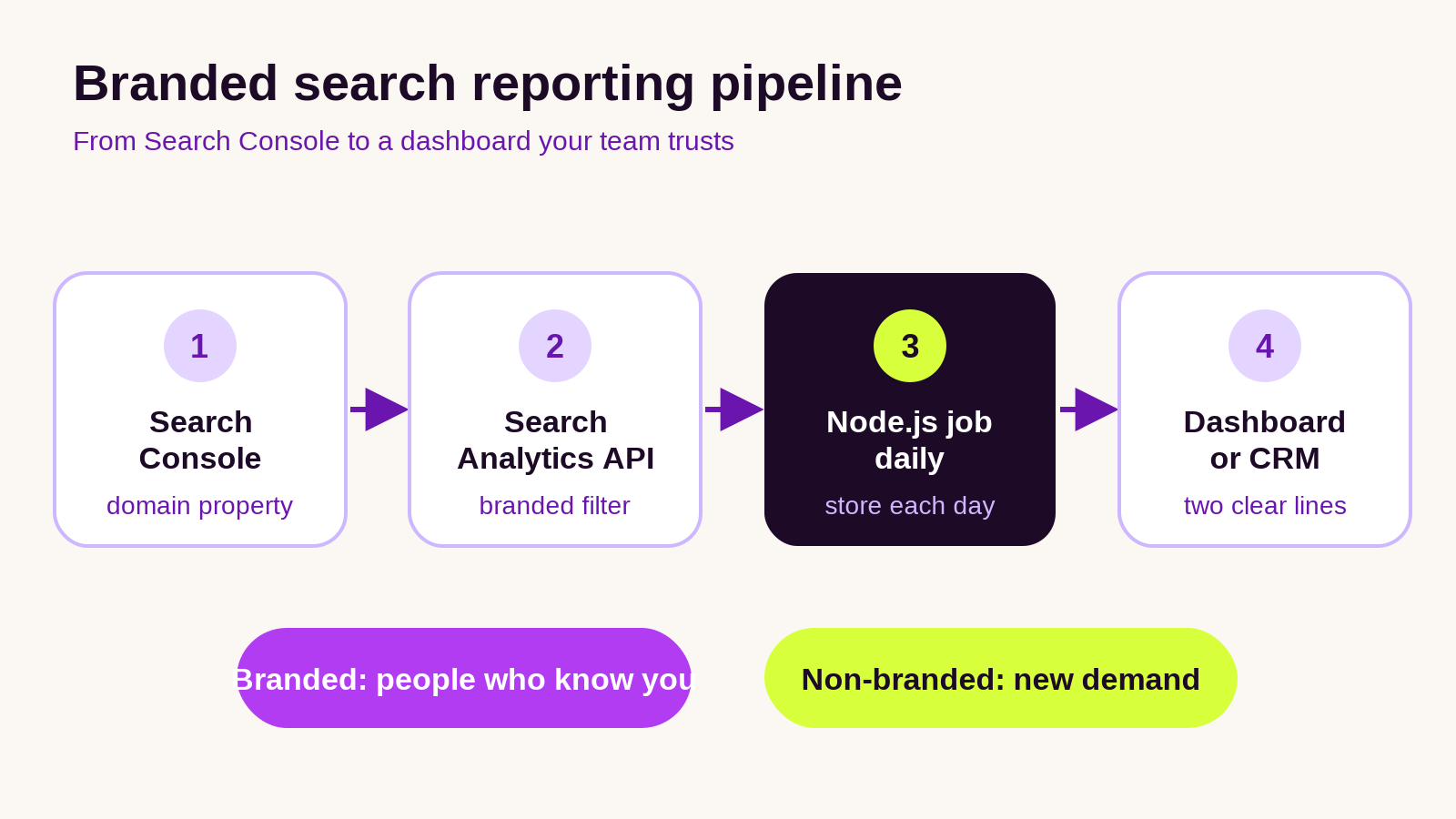
- 1 Create a service account in a Google Cloud project, enable the Google Search Console API, and download its key (store it as a secret, never in the repository).
- 2 Give it access in Search Console under Settings > Users and permissions > Add user, using the service account's email address. Restricted permission is enough for reading data.
-
3
Use the domain property as the site URL, written as
sc-domain:yourdomain.com. - 4 Run a daily job that pulls the last few days (Search Console data arrives with a short delay and can be revised), and upsert rows by date and classification so re-runs don't create duplicates.
- 5 Point the dashboard at your stored table, not at the API.
The script below runs on current Node.js LTS as an ES module (save it as branded-report.mjs) and needs the google-auth-library package. Set GOOGLE_APPLICATION_CREDENTIALS to the key file path, change the site and dates, and replace the console.log with a write to your database.
import { GoogleAuth } from 'google-auth-library';

const auth = new GoogleAuth({
  scopes: ['https://www.googleapis.com/auth/webmasters.readonly'],
});
const client = await auth.getClient();

const site = encodeURIComponent('sc-domain:example.com');
const url = `https://searchconsole.googleapis.com/webmasters/v3/sites/${site}/searchAnalytics/query`;

const body = {
  startDate: '2026-11-01',
  endDate: '2026-11-25',
  type: 'web',
  dimensions: ['date', 'brandedClassification'],
  dimensionFilterGroups: [{
    filterLists: [{ dimension: 'device', expressions: ['MOBILE', 'TABLET'] }],
  }],
  rowLimit: 1000,
};

const res = await client.request({ url, method: 'POST', data: body });

for (const row of res.data.rows ?? []) {
  const [date, brand] = row.keys;
  console.log(date, brand, row.clicks, row.impressions, row.position);
}
For a visual search line, run the same request with type: 'webMultimodal'. To see only new-demand queries for a content review, swap the grouping for a filter: filters: [{ dimension: 'brandedClassification', operator: 'equals', expression: 'NON_BRANDED' }] alongside a page dimension. Keep the query dimension out of that request, for the reason above.
What we've learned from search reporting builds
The most common mistake isn't technical. It's reading one line without the other. The two lines work best as a pair, and the pattern between them tells you where to look.
A few recommendations from our own builds:
- Compare like periods. Branded search moves with campaigns, launches and seasons. Compare a month with the same month's campaign calendar in view, not just with the month before.
- Don't expect totals to match the UI to the row. Grouping by more dimensions can drop some anonymised queries, so totals by date alone and totals by date plus classification may differ slightly. Report trends, not exact reconciliations.
- Store raw rows. Keep date, classification, device, clicks, impressions and position. Charts change; re-pulling history later is slow and the API only keeps a rolling window.
- When we wouldn't bother: a small site with little search volume may not be eligible at all. In that case the Search Console screen is enough, and an integration is wasted effort.
Troubleshooting
| Symptom | Likely cause | Fix |
|---|---|---|
| Request succeeds but returns no rows | The property isn't eligible (a URL-prefix subfolder, or not enough volume), or the dates are before February 21, 2026 | Query the domain property and check the date range; confirm the branded filter appears in the Search Console Performance report |
| 400 error after adding a query filter | brandedClassification can't be combined with a query filter |
Split it into two requests, or filter by page instead |
| 400 error mentioning the device dimension | Device is used in both filters and filterLists |
Move every device condition into the filter list |
| 403 permission error | The service account isn't a user on the property, or the scope is wrong | Add its email in Users and permissions and use the webmasters read-only scope |
| Yesterday's numbers keep changing | Recent Search Console data is still being finalised | Re-pull the last few days on every run and upsert them |
Questions people ask
Can I tell Google which words are my brand?
No. The API exposes Google's own classification and doesn't take a custom list. If you need your own definition, keep a regular expression on the query dimension as a separate report.
Does this work for a URL-prefix property?
Only for top-level properties with enough volume. A subfolder property such as a blog section usually won't return branded data, so use the domain property and filter by page.
Should this go in our CRM or a dashboard?
Usually a dashboard first. Search Console data is aggregated, not per visitor, so it can't be attached to a contact. It sits well next to lead counts by source, which is how most leadership teams want to read it.
Why this matters for your business
Branded and non-branded traffic answer different questions. One tells you whether your marketing is building recognition. The other tells you whether your website is winning customers who have never heard of you, which is usually what you're paying for when you invest in content, a redesign or technical SEO. Having both in a report that updates itself means fewer debates about whether "SEO is working" and quicker decisions when something drops.
It also builds on work you may already have. If you've moved hosting recently, our guide to keeping Googlebot crawling through a CDN migration covers the crawl side of the same reports, and for stores, reading Shopify sessions after the bot traffic change explains why on-site numbers can shift independently of search. If your reporting job runs on an older runtime, our Node.js 26 LTS upgrade plan is a good place to start.
Quick checklist:
- Confirm the branded filter shows in your Search Console Performance report.
- Create a service account and add it to the domain property.
- Schedule a daily pull grouped by date and branded classification.
- Store the rows and chart branded and non-branded as two lines.
- Add a visual search line if products are a big part of your site.
If you'd like this wired into your dashboards or CRM, our Node.js integration and API development team can build it with you, or you can tell us about your reporting setup.
(over to you)
Planning a build like this?
Tell us what you're building and we'll come back with ideas and next steps.