Shopify Flow updated triggers: automate order and customer edits
Shopify Flow updated triggers (November 2026) start a workflow when a watched field changes on orders, customers, returns and more. How they work, setup steps, a Run code example and fixes for common problems.
Shopify Flow can now start a workflow when something changes on an existing record, not only when a record is created. In November 2026 Shopify added eight updated triggers, covering customers, orders, refunds, returns, fulfillment orders, collections, locations and inventory items.
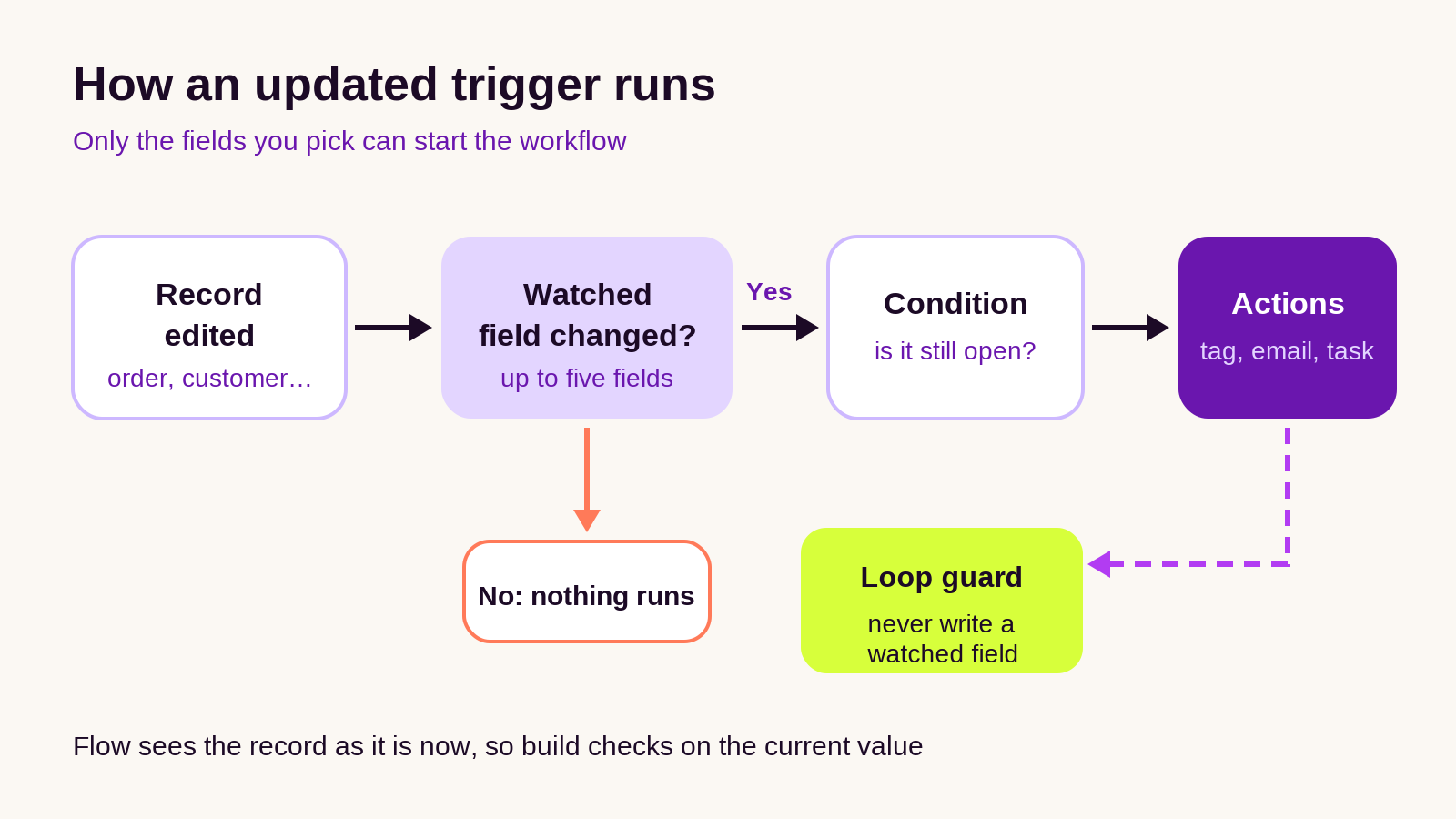
Each trigger lets you pick up to five fields to watch. When one of them changes, the workflow runs. Flow sees the record as it is now, so your conditions should check the current value rather than what it used to be.
To set one up, write down the business event first, choose the trigger and the fewest fields that capture it, add a condition so the workflow only acts when it matters, then add actions such as a tag, an internal email or a task.
The biggest mistake is a loop: an action that writes to a field the trigger is watching. Tag the record, or watch a different field, so the workflow can't restart itself. Test on a few records before switching it on.
If you'd like a second pair of eyes on your store's automations, a Shopify or automation partner can help.
If your team still finds out about changed shipping addresses, edited customer details or a new inventory cost by accident, this post is for you. Shopify Flow updated triggers, added in November 2026, let a workflow start when a specific field changes on an existing order, customer, return or inventory item. Below we explain how they work, how to set one up without creating a runaway loop, and what we'd check before trusting one in a busy week.
The problem: edits happen after the order, and nobody hears about them
Most store automation was built around moments of creation. An order is placed, a customer signs up, a product is added. Flow has had triggers for those for a long time, and they cover the obvious jobs well.
The trouble is that a lot of costly mistakes come from edits, not creations. A customer emails to change their delivery address after the warehouse has picked the parcel. Someone on the team updates a unit cost, and the margin report is quietly wrong. A wholesale customer's tags are changed, and their price list no longer applies. Until now, catching those meant a third-party app, a scheduled workflow that checked everything over and over, or a developer listening to webhooks.
In October 2026 Shopify added a Product updated trigger to Flow. On November 20, 2026 the Shopify Changelog announced eight more on the same model: Customer updated, Order updated, Refund updated, Return updated, Fulfillment order updated, Collection updated, Location updated and Inventory item updated.
How Shopify Flow updated triggers actually work
An updated trigger is a filter that sits in front of your workflow. When you add one, you pick up to five fields on that record to watch. Shopify then compares each edit against that list. If none of the watched fields changed, nothing happens. If at least one did, the workflow starts and receives the record in its current state.
Three details shape everything you build with them:
- You choose the fields, not the events. "Order updated" on its own means nothing. "Order updated, watching the shipping address" is a precise business event. The narrower your selection, the fewer surprise runs you get.
- The workflow sees the record as it is now. Treat the trigger as "this field just changed" and build your conditions on the current value. Don't design logic that depends on knowing the old value unless Flow's documentation for that trigger lists one.
- Actions can fire the trigger again. If an action writes to a field the trigger watches, that write is itself an update. Flow can end up restarting the same workflow, which is the single most common way these go wrong.
For product records there is one more quirk worth knowing: watching variant, media or option fields can also start the workflow when a brand new product is created, because those items are created along with it.
How to set one up: a shipping address change alert
We'll use the example that earns its keep in most stores: tell the fulfillment team when a shipping address changes on an order that hasn't shipped yet.
- 1 In Shopify admin, open Apps > Flow and choose Create workflow.
- 2 Select the trigger Order updated. Under the fields to watch, pick shipping address and nothing else.
-
3
Add a Condition: the order's fulfillment status is unfulfilled, and the order does not already have the tag
address-changed. -
4
Under "then", add Add order tags with
address-changed, and Send internal email to your fulfillment inbox with the order name and new address. - 5 Name the workflow clearly ("Alert: address changed before shipping"), save it, edit a test order's address, and check the run in the workflow's Recent runs list before switching it on for real.
Notice that the tag action writes to tags, which the trigger isn't watching. That's the loop guard built in.
When the condition needs more logic: Run code
Flow's visual conditions handle most cases. When you need to combine several checks or format a message, the Run code action lets you write a small JavaScript function. It takes a GraphQL input query, a function, and an output schema. Add it after the trigger, then use its output in the next condition.
Input query:
query {
  order {
    name
    displayFulfillmentStatus
    tags
    shippingAddress {
      address1
      zip
    }
  }
}
Code:
export default function main(input) {
  const order = input.order;
  const stillOpen = order.displayFulfillmentStatus === "UNFULFILLED";
  const alreadyFlagged = order.tags.includes("address-changed");
  const addr = order.shippingAddress || {};

  return {
    shouldAlert: stillOpen && !alreadyFlagged,
    summary: `${order.name}: ${addr.address1 || "no address"} ${addr.zip || ""}`.trim(),
  };
}
Output schema:
type Output {
  shouldAlert: Boolean!
  summary: String!
}
Then add a condition on shouldAlert and drop summary into your email. Change the tag name and the status check to match your own process; a partially fulfilled status may matter to you too.
Other jobs these triggers suit
| Trigger | Field to watch | Typical action |
|---|---|---|
| Inventory item updated | Unit cost | Update a product metafield or alert whoever owns pricing |
| Customer updated | Tags | Add or remove a wholesale or VIP segment in your email tool |
| Return updated | Status | Create a task for the team that inspects returned stock |
| Location updated | Fulfillment setting | Warn operations that a location stopped or started fulfilling online orders |
What we've learned building edit-based workflows
We usually start every one of these on paper. Write the sentence "when this field changes on this record, and this is true, do that." If you can't finish the sentence, the workflow isn't ready.
- Watch fewer fields than you think. It's tempting to fill all five slots. Each extra field is another reason for the workflow to run when you didn't mean it to.
- Keep one job per workflow. A single "order updated" workflow that handles addresses, tags and notes becomes hard to debug. Split them.
- Replace, don't stack. If an app or a scheduled workflow already does the same job, switch it off once the new one is proven, or you'll get duplicate emails and tags.
- Know when not to use Flow. If the change has to reach an ERP or warehouse system reliably, a webhook into a small back end with retries and logging is often the sturdier choice. Flow is great for alerts, tags and in-Shopify updates.
Troubleshooting
- Symptom: the workflow runs over and over on the same record. Likely cause: an action writes to a field the trigger watches. Fix: remove that field from the watch list, or add a marker tag and a condition that skips records already marked.
- Symptom: new products set off a "Product updated" workflow. Likely cause: you're watching variant, media or option fields, which are created with the product. Fix: watch a different field, or add a condition that skips products created very recently.
- Symptom: the workflow never runs. Likely cause: the field you watch isn't the one being edited (for example, the billing address instead of the shipping address), or the workflow is still off. Fix: check the watched fields, turn the workflow on, and look at Recent runs after a test edit.
- Symptom: Run code fails or returns empty values. Likely cause: the input query asks for a field that is empty on that order, such as a missing shipping address for a digital order. Fix: guard against missing values in the code, as the example does, and test on an order without shipping.
Questions people ask
Do I need Shopify Plus to use updated triggers?
Flow is available to merchants on a range of Shopify plans, but which triggers and actions you see can depend on your plan and apps. Open Flow in your admin and search the trigger list; if it's there, you can use it.
Can Flow tell me what the old value was?
Plan on the workflow seeing only the current state of the record. If you need a history, have the workflow write the value into a metafield each time it runs, so the next run has something to compare against.
Should my developer use these instead of webhooks?
For alerts and in-store changes, often yes, because they're easier for your team to see and edit. For syncing with outside systems, webhooks plus a small service is usually the better fit.
Why this matters for your store
Edits are where orders go missing, margins drift and good customers get the wrong price. Updated triggers let you catch those moments inside Shopify, with workflows your own team can read, instead of relying on someone noticing. They pair well with the risk checks in our guide to setting up Shopify fraud rules with Protect's Rule Builder, and with planned launches like those in scheduling a theme launch with Shopify Rollouts. If an automation needs to reach systems outside Shopify, our notes on the Shopify custom app IP allowlist cover what your developer has to set up.
A quick checklist before you switch one on:
- One business event per workflow, written as a sentence.
- The fewest watched fields that capture it.
- A condition that checks the current state and a marker tag.
- No action that writes to a watched field.
- A test edit, checked in Recent runs, before going live.
If you'd like help mapping your store's edits to workflows, our workflow automation team and Shopify development service are happy to talk it through.
(over to you)
Planning a build like this?
Tell us what you're building and we'll come back with ideas and next steps.