Webflow robots.txt: control search and AI crawlers safely
How Webflow robots.txt works after the November 2026 robots.txt API beta: what it can and can't block, rules for search and AI crawlers, how publishing applies changes, and fixes for common problems.
Your Webflow robots.txt tells search engines and AI crawlers which parts of your site they may crawl. It does not hide pages and it does not remove them from search, so use it for crawling decisions only.
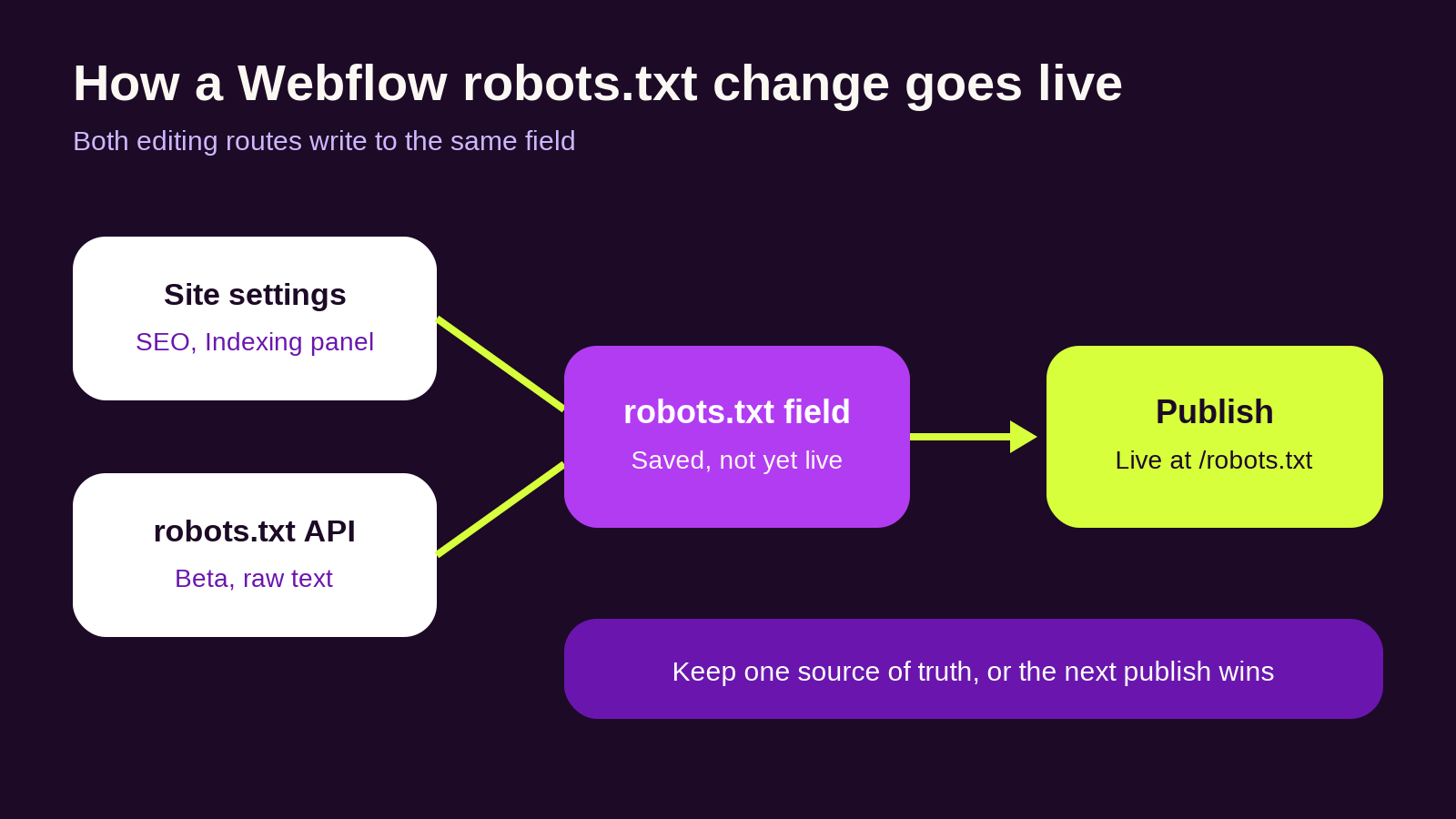
In November 2026 Webflow added a beta API that reads and writes the raw robots.txt text, keeping comments and directives exactly as written. That makes it easier to manage rules across several sites, but the settings panel and the API edit the same field, and nothing goes live until you publish.
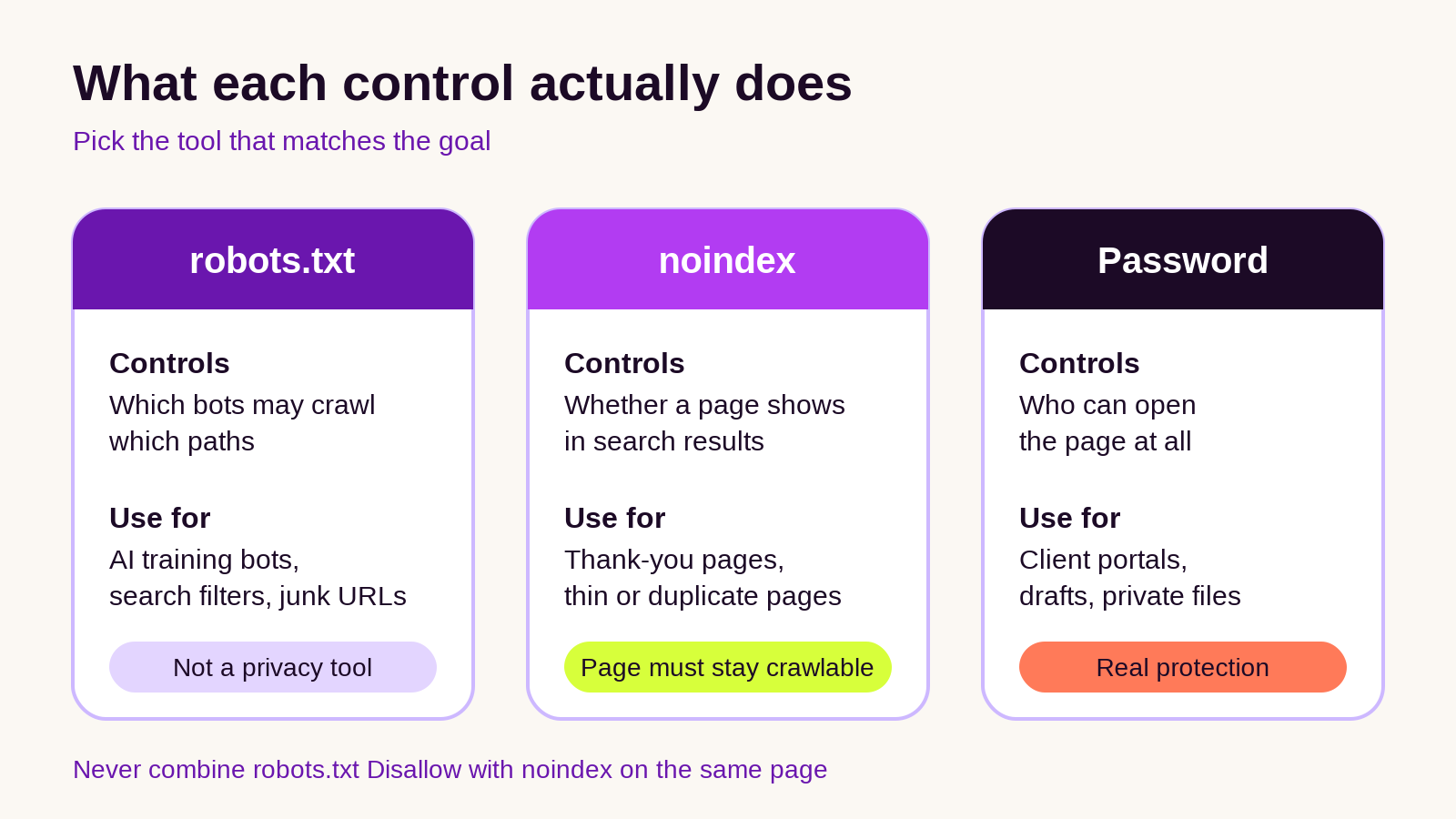
Use robots.txt to choose which AI training bots you allow and to keep crawlers out of search filters and duplicate URLs. Use noindex to keep a page out of search results, and use a password for anything private. Never block a page in robots.txt that you also want removed with noindex, because crawlers can't see the tag.
Next, open your live robots.txt, compare it with what you intended, agree who owns it, and test any change after you publish.
If you run a marketing site on Webflow, your Webflow robots.txt is the short text file that tells Google, Bing and AI crawlers which parts of the site they may visit. This post is for marketing leads and site owners who want to decide, on purpose, what search engines and AI tools can crawl, without accidentally hiding pages that bring in leads. You'll learn what the file really controls, how the new API changes the way it's managed, a copy-ready starting file, and how to fix the problems we see most.
The reason to look now: on 9 November 2026, Webflow's developer changelog added a beta robots.txt Content API. It reads, replaces and clears the exact text of the robots.txt field in Site settings, keeping comments, blank lines and directives as written. That's useful for teams running several sites, and it also creates a new way for two people to overwrite each other's rules.
The problem: one small file, two very different jobs
The questions we hear about robots.txt usually take one of two forms. Either "we don't want our content used to train AI models", or "our pages aren't showing up and someone thinks robots.txt is to blame". Both are about the same file, and both are often handled with the wrong tool.
robots.txt is a set of polite requests to crawlers. Reputable bots follow it. It isn't access control, so anything you list in it is still public to anyone who types the URL. And because it controls crawling rather than indexing, a blocked URL can still appear in search results if other sites link to it, usually as a bare link with no description.
How Webflow robots.txt actually works
Webflow serves the file at /robots.txt on your custom domain. Its contents come from one field: Site settings > SEO > Indexing > robots.txt. When the field is empty, crawlers treat the whole site as allowed. Whatever you type there goes live only when you publish to that domain.
A crawler reads the file before it requests pages. It looks for the group whose User-agent line matches its own name most specifically, then applies the Allow and Disallow rules in that group. If there's a group for GPTBot and a group for *, GPTBot follows only its own group and ignores the general one. That detail catches people out more than anything else.
Next to the robots.txt field, Webflow has two related switches. Disable Webflow subdomain indexing keeps your webflow.io staging address out of search. Page-level noindex and sitemap settings decide whether an individual page is listed in search and in the auto-generated sitemap.xml. Those are the tools for keeping a page out of results; robots.txt is not.
Search bots and AI bots are separate names
AI companies publish separate user-agent tokens for different jobs, so you can make finer choices than "block AI". For example, OpenAI documents GPTBot for model training and OAI-SearchBot for surfacing sites in ChatGPT search. Google documents Google-Extended as a token that controls whether content crawled by Googlebot may be used for Gemini models; it doesn't change how your pages rank in Google Search. Anthropic documents ClaudeBot, and Common Crawl uses CCBot. Check each vendor's crawler page before you add a rule, because names and purposes do change.
What the new API changes
Earlier robots.txt endpoints in the Webflow Data API worked with structured rules and were documented for Enterprise workspaces. The November 2026 beta works with the raw text instead: you send the whole file as one content value and Webflow stores it as written, up to a 500 KiB size limit (which also matches the amount of a robots.txt file Google says it reads). Beta endpoints sit under Webflow's /beta/ namespace, aren't supported by the official SDK, and can change, so treat them as something your developer wraps in a script rather than a permanent integration.
How to set up robots.txt in Webflow
-
1
Read what's live first. Open
yourdomain.com/robots.txtin a browser and save a copy. That's your rollback. - 2 Decide per bot, not per mood. Write down which search crawlers you want (almost always all of them), which AI search tools you want to be cited in, and which training crawlers you'd rather refuse.
- 3 List low-value paths. On Webflow sites that usually means the site search results page and any filtered or parameter URLs that create endless variations.
- 4 Edit the field in Site settings > SEO > Indexing, or have your developer push the text through the API.
-
5
Publish to the custom domain, then reload
/robots.txtto confirm the new text is live. - 6 Test in Google Search Console with the robots.txt report and URL Inspection on a few important pages.
Here's a starting file we'd adapt for a typical B2B marketing site. It allows normal search crawling, keeps bots out of site search results, opts out of two training crawlers while staying visible to ChatGPT search, and points to the sitemap. Paste it into the robots.txt field, change the domain and remove any group you don't want.
# Default rules for every crawler
User-agent: *
Disallow: /search

# Opt out of AI model training
User-agent: GPTBot
Disallow: /

User-agent: CCBot
Disallow: /

# Allow ChatGPT search to crawl and cite pages
User-agent: OAI-SearchBot
Disallow: /search

Sitemap: https://www.example.com/sitemap.xml
Notice that the OAI-SearchBot group repeats Disallow: /search. Because a bot with its own group ignores the * group, any shared rule has to be copied into every named group.
What we've learned managing Webflow robots.txt
- Don't use Disallow to remove pages from Google. If you block a page and add noindex, Google can't crawl it to see the noindex. Allow crawling, set noindex, and wait for it to drop out.
- Don't block CSS, JavaScript or image paths. Google renders pages to understand them, and blocking assets can make good pages look broken.
- Be cautious with blanket AI blocks. Blocking every AI-related bot can also keep you out of AI search answers that send buyers to you. We usually separate training from search and decide each one with the client.
- Remember the limits. Crawlers that ignore robots.txt won't be stopped by it. If content truly must be private, put it behind Webflow's password protection or a member login.
- Keep the file short. A few clear groups are easier to audit than long lists copied from forums, many of which include bots that no longer exist.
Troubleshooting
| Symptom | Likely cause | Fix |
|---|---|---|
| Changes don't show at /robots.txt | Saved but not published, or published only to the staging subdomain | Publish to the custom domain, then hard-refresh the file |
| Rules you added last week have disappeared | Someone else saved different text in settings or through the API before the latest publish | Restore from your saved copy and agree a single owner |
| Search Console shows "Indexed, though blocked by robots.txt" | The URL is disallowed but linked from elsewhere | If you want it out of search, remove the Disallow and use noindex instead |
| A named bot still crawls /search | It has its own group, so it ignores the * rules | Copy the shared Disallow lines into that bot's group |
| Whole site disappears from search after launch | A leftover Disallow: / under User-agent: * from staging |
Remove it, publish, and request recrawling in Search Console |
Questions people ask
Does blocking AI crawlers hurt my Google rankings?
Blocking GPTBot, CCBot or the Google-Extended token doesn't affect how Googlebot crawls or ranks your pages. Blocking Googlebot itself would. Keep the two decisions separate.
Can I edit robots.txt on any Webflow plan?
Which settings you can change depends on your site plan and workspace, so check Webflow's help article on robots.txt rules for your plan. API access also varies by endpoint, and some robots.txt endpoints are documented for Enterprise workspaces, so read the endpoint's reference page before planning automation.
Is robots.txt enough to keep content private?
No. It's a public file that well-behaved bots follow voluntarily. For anything sensitive, use password protection or a login, and ask a qualified adviser if the content carries legal obligations.
Why it matters for your business
Your robots.txt quietly decides whether buyers find you in search and in AI answers, and a single leftover line can undo months of content work. It's a common thing to check during a calm review after a Google core update, and worth adding to your list whenever a site changes plan or workspace, alongside the billing checks in our guide to Webflow site plan changes. If you're still weighing platforms, our Webflow vs WordPress comparison for B2B sites explains how each handles SEO settings.
Quick checklist: save your live file, decide per bot, block only low-value paths, use noindex for search removal and passwords for privacy, publish, test in Search Console, and name one owner.
If you'd like a second pair of eyes on your crawler rules or a cleaner setup across several sites, our Webflow development team is happy to talk it through with you.
(over to you)
Planning a build like this?
Tell us what you're building and we'll come back with ideas and next steps.