Webflow shared Libraries: one design system across many sites
How Webflow shared Libraries keep components, variables and styles consistent across several sites, what the November 2026 copy and paste update changed, how to set one up, and fixes for common problems.
If your brand runs more than one Webflow site, shared Libraries are how you keep buttons, headers, colors and type the same everywhere without rebuilding them on each site.
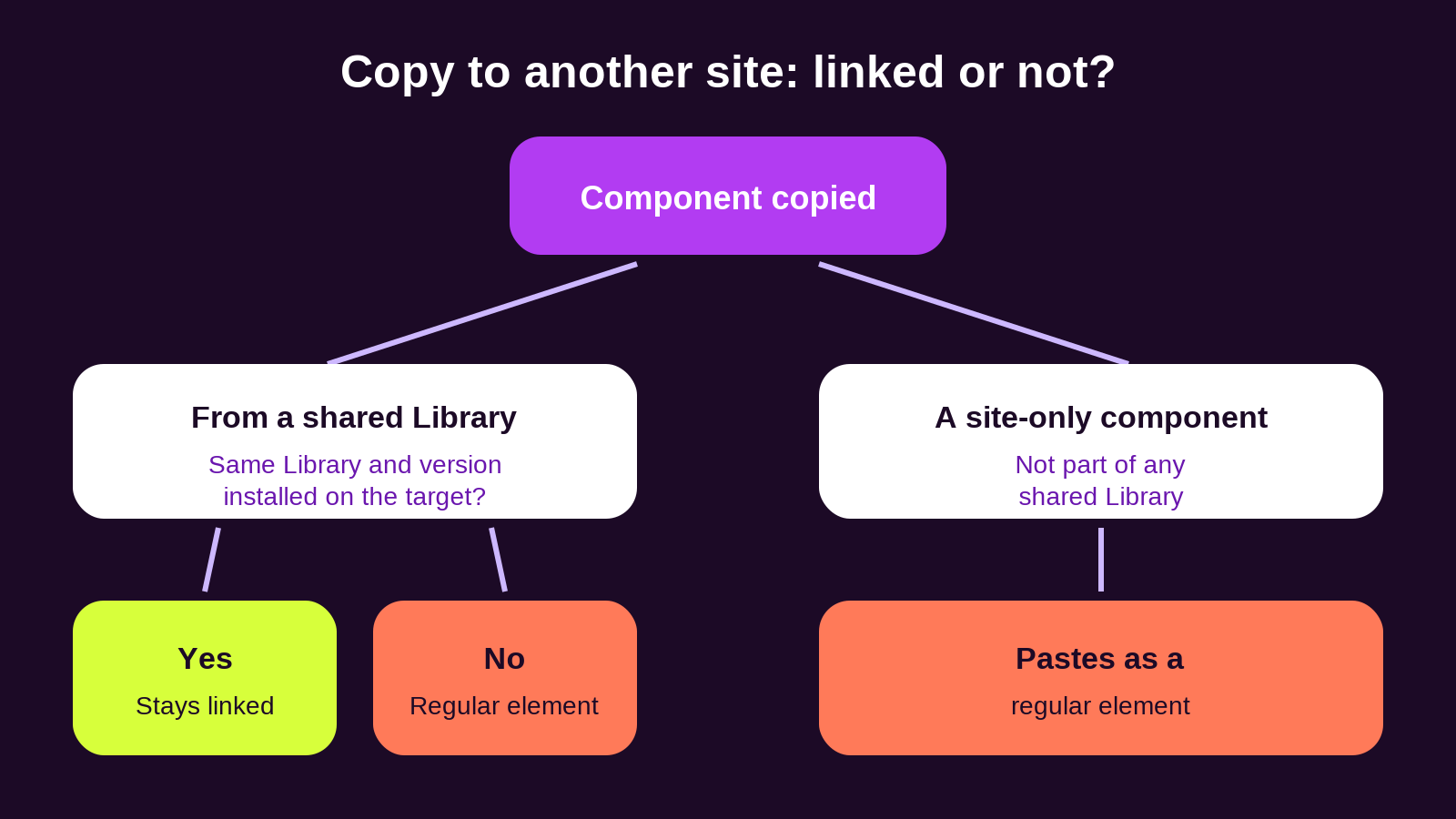
On November 9, 2026, Webflow changed copy and paste. Components now stay linked when you copy within a site, and a new Copy to another site action keeps shared Library components linked, but only when the destination site has the same Library installed at the same version. Anything else pastes as a plain element.
The setup is simple. Pick one source site that holds the system. Share its Library with the Workspace. Install it on each brand site. Then treat every change like a release: edit on the source, share the update, review and accept it on each site, and publish.
Most problems come from version drift, detached copies, or people editing components on the wrong site.
Next, list every site your brand runs, decide which one owns the design system, and agree who is allowed to share updates.
If your company runs more than one Webflow site, say a main brand site, a product site and a campaign or careers site, you've probably seen the same button drift into three slightly different shades. Webflow shared Libraries fix that by letting one site own your components, variables and styles, and every other site install them. This guide is for marketing leads and founders who manage several Webflow sites, or who are about to hire an agency to build a design system for them. You'll learn how Libraries behave, how to set one up, and what to agree with whoever maintains it.
The timing matters. On November 9, 2026, Webflow changed how copy and paste works with components: they now stay linked when you copy within a site across tabs and reloads, and a new Copy to another site action keeps shared Library components linked when you move pages between sites. That makes multi-site work much smoother, but only if your Libraries are set up and versioned properly.
The problem: brand drift across Webflow sites
Here is how clients usually describe it: "We changed our primary color on the main site last spring and the product site still has the old one." Or: "Every new landing page someone builds has a slightly different footer."
That happens because, without a Library, each Webflow site has its own components and its own variables. A designer copies a navbar from one site to another, and from that moment there are two navbars that no longer know about each other. Every brand update becomes a manual hunt across sites, and something always gets missed.
The cost isn't only visual. Duplicated components mean duplicated fixes: an accessibility fix to a menu, or a change to a form, has to be made in every copy.
How Webflow shared Libraries actually work
A Library is the set of reusable resources from one source site, shared with your Workspace. Depending on your setup it can include components, variables (including variable modes), tag styles, fonts and assets. Other sites in the same Workspace can install it and use those resources as if they were local, but they can't edit them: the source site is the single place where the design system changes.
The part people miss is that Libraries are versioned, not live. When a designer edits a component on the source site, nothing happens elsewhere until they choose to share an update. Each consuming site then sees the update waiting and accepts it. And even after accepting, visitors only see the change once that site is published. On Enterprise Workspaces, bulk Library updates let you push an update to many consuming sites at once instead of accepting it site by site.
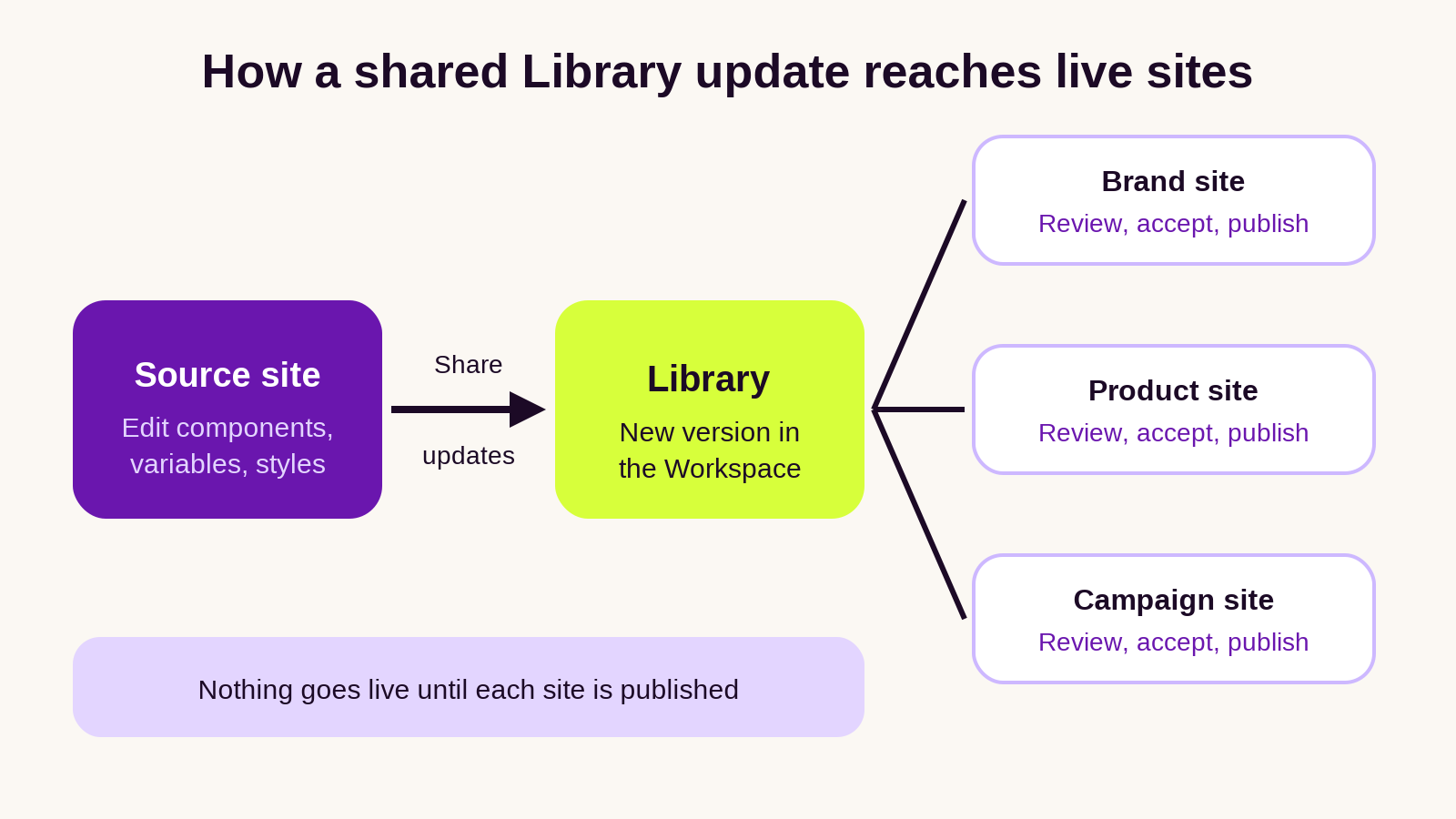
This design is deliberate, and we think it's the right one. It means a half-finished change on the source site can't break a live campaign page. The trade-off is that someone has to own the release step, or sites quietly fall behind.
What the November 2026 copy and paste change means
Moving component-heavy pages between sites used to be slow and easy to get wrong. Now there are two clearly different actions:
- Copy within the same site: components stay linked to their definitions, even across browser tabs and after a reload.
- Copy to another site: shared Library components stay linked, as long as the destination has the same Library installed at the same version. If the destination doesn't have a local copy of that component yet, you also need permission to create components there.
Components that belong only to the source site, not to a shared Library, paste into another site as regular elements. A plain copy (rather than Copy to another site) can't be pasted into a different site at all, and cutting a component to move it to another site is refused, so use undo on the original site if you cut by mistake.
How to set up a shared Library for several sites
Shared Libraries are available on paid Workspace plans; how many Libraries you can share depends on your plan, so check Webflow's current pricing page before you design around it. Then work through these steps.
- 1 Choose the source site. We usually create a dedicated "design system" site rather than using the main marketing site. It keeps experiments and page content away from the system, and nobody is tempted to edit a live page while updating a button.
- 2 Clean up before you share. Rename components and variables so they read clearly to someone who wasn't there when they were built ("Button / Primary", "Color / Brand / Plum"). Remove unused components. A messy Library spreads mess to every site.
-
3
Share it with the Workspace. Open the Libraries panel in the Designer (press
L), expand Site resources, choose Share with Workspace, pick any asset folders you want included, and confirm. - 4 Install it on each site. On every consuming site, open the Libraries panel and install it from Available to install. Workspace members can install it even if they don't have access to the source site.
- 5 Replace local duplicates. Swap each site's old local navbar, footer and buttons for the Library versions, page by page, then delete the local copies so nobody uses them again.
- 6 Agree a release routine. Edit on the source site, review the changes, share the update with a short note, then accept and publish on each consuming site, starting with the least risky one.
Note that a site that already has shared Libraries installed can't itself share a Library, and Libraries can't be shared across different Workspaces. If your sites live in separate Workspaces today, for example because different agencies built them, moving them into one Workspace is usually the first job.
What we've learned running multi-site design systems
The software part is the easy bit. The hard part is deciding who is allowed to change the system and how often.
- Don't put page content in the Library. Components should take their text, images and links from properties or slots. A hero component with a hard-coded headline is a page, not a component.
- Design with variables first. Colors, spacing and type sizes as variables (with modes for light and dark themes if you need them) let you rebrand by changing values rather than editing every component.
- Converting is a one-way door. When an installed item conflicts with an update, you can convert it into a site-specific item. That keeps your version, but it stops receiving Library updates. Use it rarely and write down why.
- When we wouldn't use a Library: if you only have one site, or your sites are meant to look genuinely different, local components are simpler. A Library earns its keep when several sites must stay recognizably the same brand.
Troubleshooting common problems
| Symptom | Likely cause | Fix |
|---|---|---|
| Pasted components arrive as plain divs on another site | The destination has an older Library version, the components were site-only, or a plain copy was used | Accept the latest Library update on the destination, then use Copy to another site again |
| A brand change shows on one site but not the others | The update was accepted on one site only, or sites weren't republished | Accept the update on every consuming site and publish each one |
| A component on one site no longer updates | It was converted to a site-specific item during a conflict | Replace it with the Library version from the Components panel and delete the converted copy |
| The Share with Workspace option is missing | The site has shared Libraries installed, or the plan doesn't allow more shared Libraries | Share from a dedicated source site with no installed Libraries, and check your Workspace plan |
Questions people ask
Can a shared Library work across different clients or companies?
No. Libraries are shared within a single Workspace. If you want to reuse a system in another Workspace, you'll need to rebuild or copy it there, and it won't stay linked to the original.
Do Library updates go live automatically?
No. Each site accepts the update and then has to be published before visitors see it. Bulk updates on Enterprise remove the accepting step for each site, but publishing still applies.
Who should own the source site, us or the agency?
Your company should own the Workspace and the source site. The agency can maintain it with the access you give them, which keeps the design system yours if you change partners later. We covered the billing side of this in our post on Webflow site plan changes for agency-built sites.
Why it matters for your business
A shared Library turns your brand from a set of guidelines people try to follow into something the sites actually enforce. New landing pages get built from approved parts, fixes are made once, and a rebrand becomes a planned release rather than a scramble across every site. It also pairs well with the newer Webflow features we covered in what to use from Webflow Conf 2026, such as components inside CMS content, and with native elements like the ones in our guide to Webflow modal and popover elements.
If you're choosing a partner for this work, ask how they name components, how they version and release updates, and who owns the Workspace at the end. Our Webflow development service builds and maintains multi-site systems like this, and our brand and UI design team can define the system before it's built.
Quick checklist:
- List every Webflow site your brand runs and confirm they share one Workspace.
- Pick or create a dedicated source site for the design system.
- Name components and variables clearly, then share the Library.
- Install it everywhere and remove local duplicates.
- Agree who shares updates, and accept and publish them on all sites together.
If you'd like help planning a design system across your Webflow sites, tell us what you're running and we'll suggest a sensible starting point.
(over to you)
Planning a build like this?
Tell us what you're building and we'll come back with ideas and next steps.